⚡ Features

Powerful Features

Everything you need to supercharge your WhatsApp business. Automation, AI, messaging, and much more!

🤖 Feature 1 — WhatsApp AI Chatbot

Let AI handle your WhatsApp customer conversations automatically. Train the bot with your business details, configure working hours, and enable 4 automatic actions—send replies, update tabs, book appointments, and save profile data. Choose from ChatGPT, Gemini, or DeepSeek as your AI engine. Works while your PC is on & WhatsApp Web is open.

⚡ Step 1: Setup

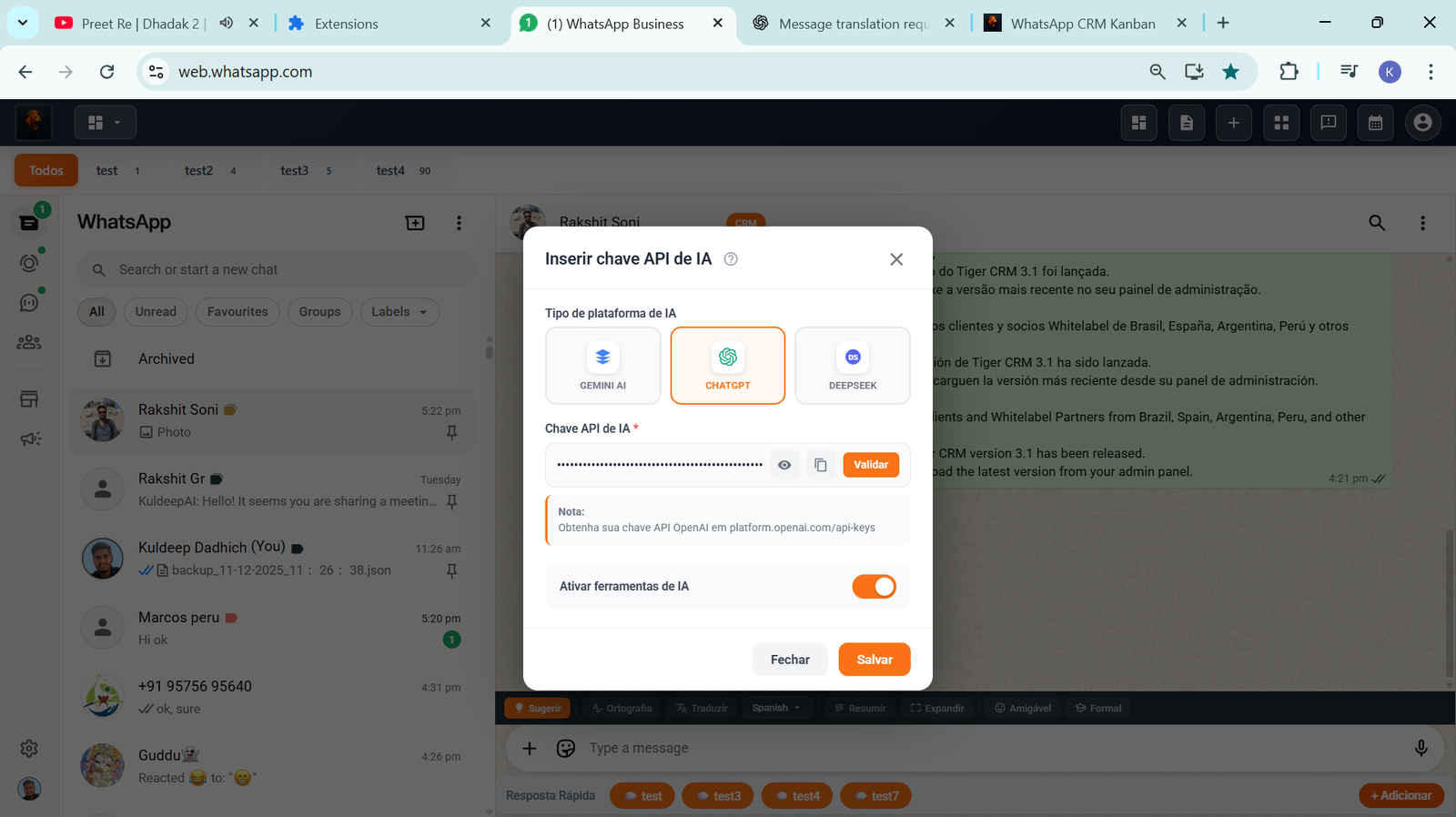
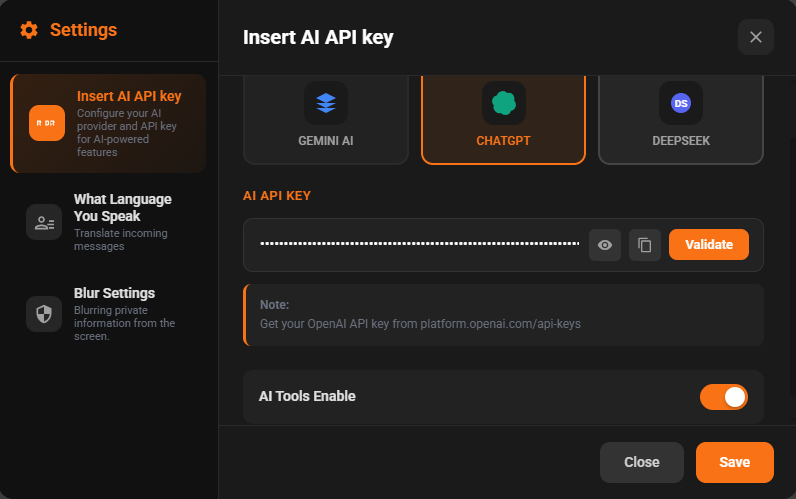
Insert Your AI API Key

To activate the WhatsApp AI chatbot, navigate to Settings → Insert AI API Key. Choose your preferred AI provider, paste your API key, and enable AI Tools. The AI Bot icon will instantly appear in your top toolbar!

Gemini AI
ChatGPT
DeepSeek
  • 3 AI Providers — Gemini, ChatGPT, or DeepSeek
  • Use your own API key for full control
  • Switch between providers anytime you want
WhatsApp AI Chatbot API Key Setup - Insert ChatGPT, Gemini or DeepSeek API Key in Lion CRM
🔑
API Status
Validated ✓
AI Tools
Enabled
💬 Step 2: Test

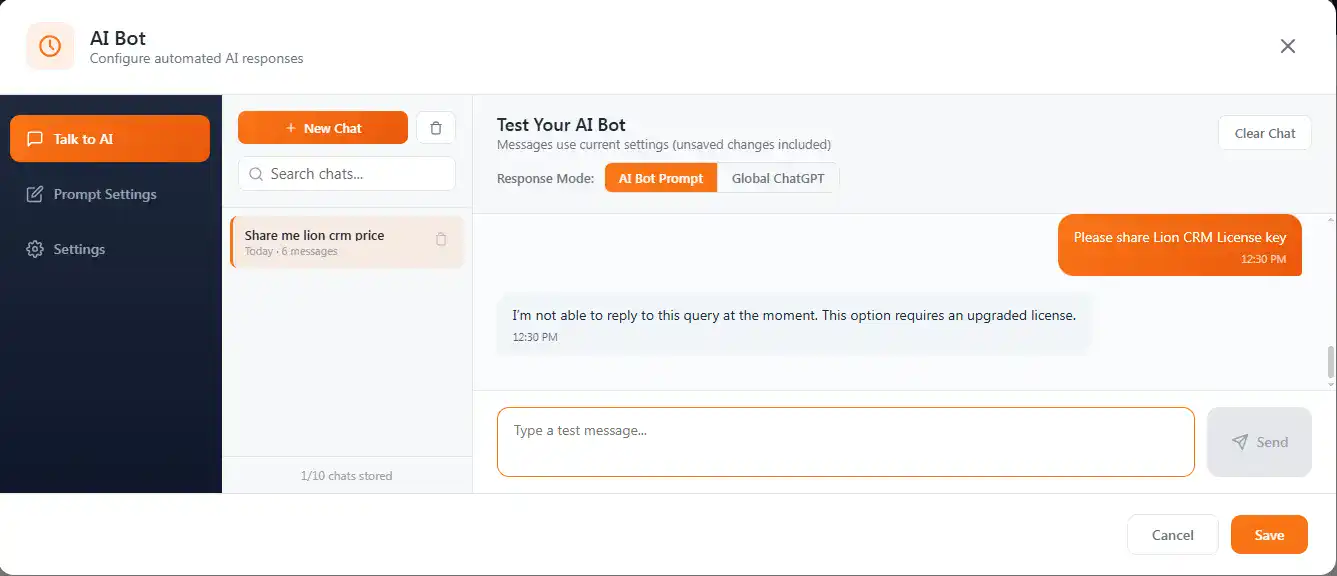
Talk to AI

Before deploying your WhatsApp auto reply bot, test it first! Use the "Talk to AI" feature to see exactly how your AI chatbot responds. Check response quality, tone, and accuracy before going live.

  • Real-time testing — chat with AI instantly
  • See how AI understands your business prompt
  • Fine-tune responses before automation
  • Test different scenarios and questions
Talk to AI - Test WhatsApp AI Chatbot Before Going Live in Lion CRM
🧪
Mode
Testing
📝 Step 3: Configure

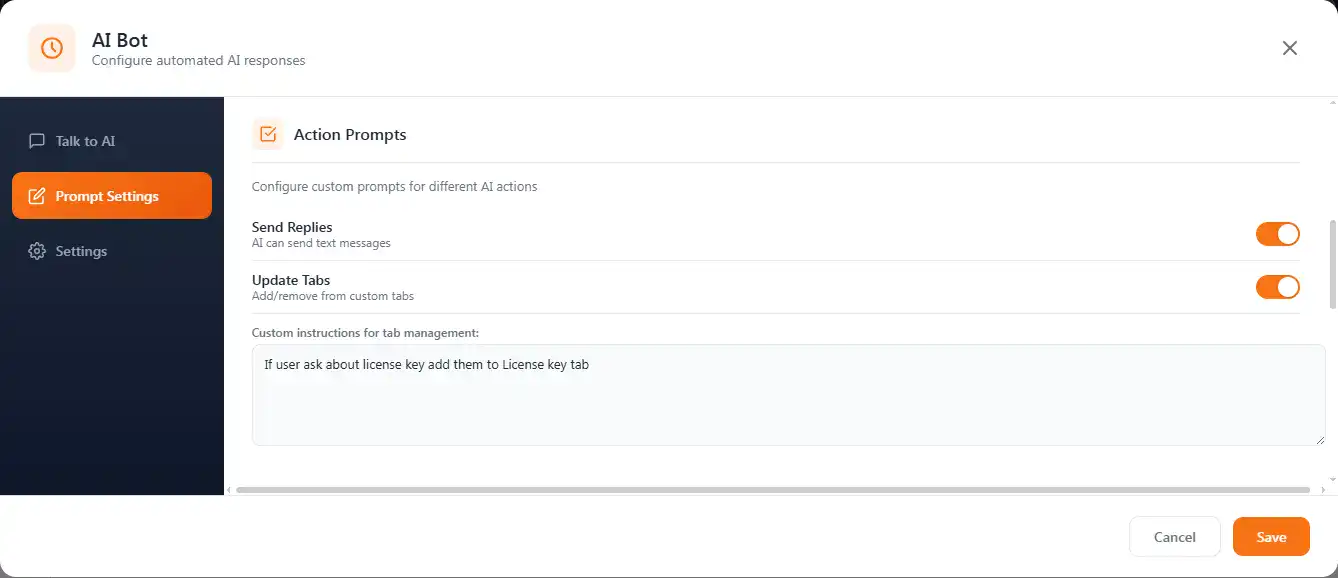
Prompt Settings

The brain of your WhatsApp AI chatbot! Configure business prompt to define your company's tone, products, and guidelines. Set up action prompts for updating profiles, creating appointments, and more.

  • Business Prompt — Define your brand voice & context
  • Fallback Reply — When AI can't understand
  • Action Prompt — Auto update tabs & profiles
  • Custom Instructions — Add specific AI behaviors
  • General Knowledge — Allow AI to use external info
WhatsApp AI Chatbot Business Prompt Settings - Configure AI Response Behavior in Lion CRM
🎯
Prompt
Configured
Actions
5 Active
📅 Step 4: Appointments

AI Appointment Booking

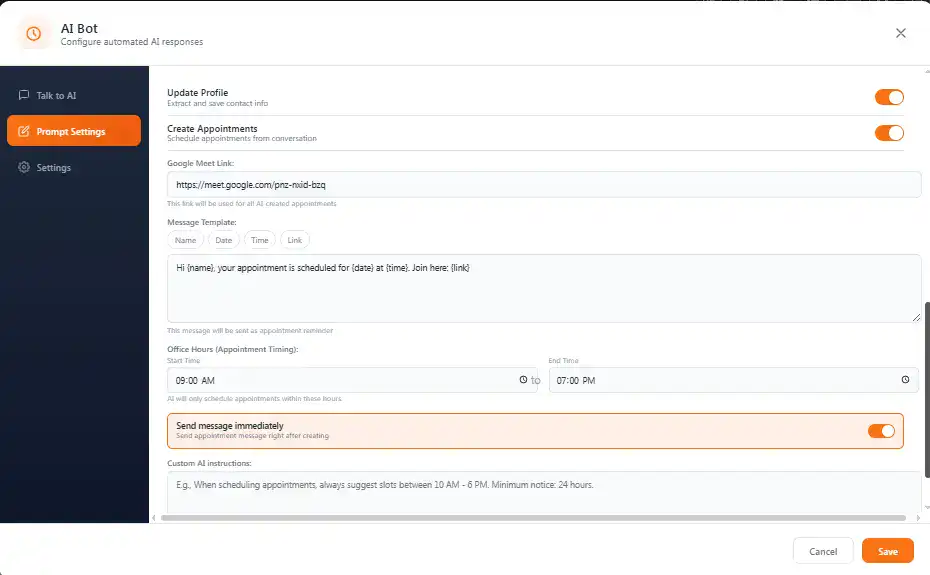
Let your WhatsApp AI chatbot book meetings automatically! Paste your Google Meet link, set office hours, and define your prompt — AI will handle appointment scheduling based on your custom instructions.

  • Google Meet Integration — Paste your meeting link
  • Office Hours — Book within working hours only
  • Meeting Templates — Custom appointment messages
  • Custom Prompt — Define how AI handles bookings
  • Smart Replies — AI responds based on your instructions
WhatsApp AI Bot Appointment Booking with Google Meet Integration - Schedule Meetings Automatically
📅
MEETING
Booked!

More Powerful Features

🤖

Enable AI Bot

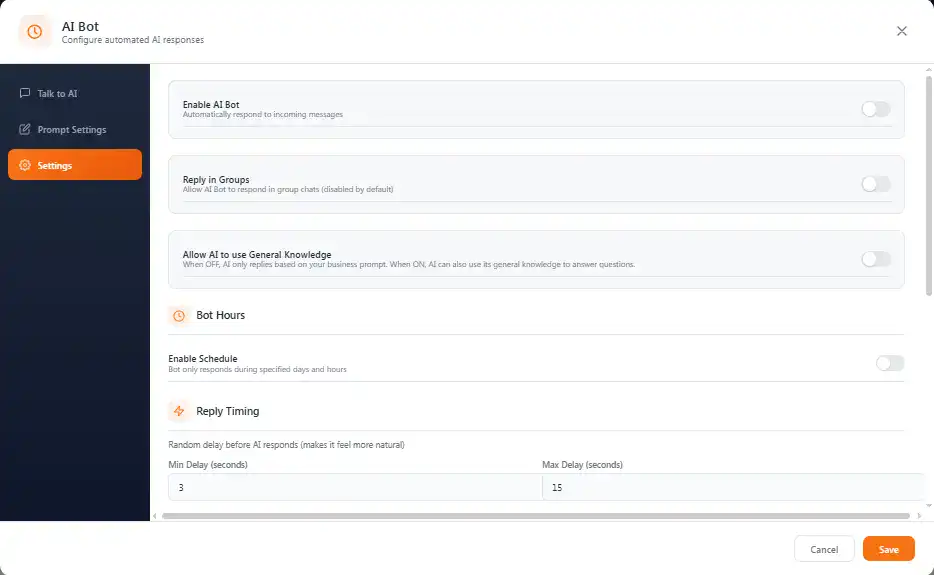
Turn on WhatsApp auto reply for incoming messages. Control if AI should respond in group chats or only private conversations.

💬
Auto Reply
👥
Group Chats
🧠
General Knowledge
Instant Mode

Enabled Actions

Choose what your AI chatbot can do automatically — send replies, update tabs, create appointments, and update contact profiles!

WhatsApp AI Bot Enabled Actions - Auto Update Tabs, Create Appointments, Update Profiles
⏱️

Reply Timing

Add random delays to make AI replies feel more natural and human-like. Set how many previous messages AI should read for context.

🎲
Random Delay
📜
Message History
🔄
Context Flow
👤
Human Feel
📆

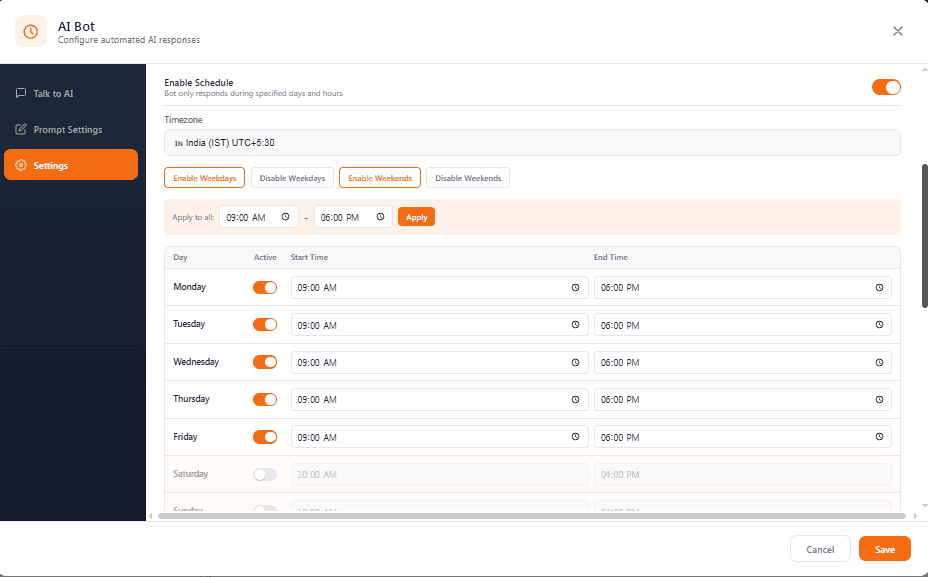
Schedule Bot Replies

Enable your WhatsApp automation bot to reply only on specific days and times. Set timezone, enable/disable weekdays or weekends, and configure custom hours for each day!

🌍
Timezone Selection
📅
Day-wise Control
Start & End Time
🔘
Quick Toggle
WhatsApp AI Bot Schedule - Enable Bot Reply on Specific Days and Times with Timezone Support
🛑

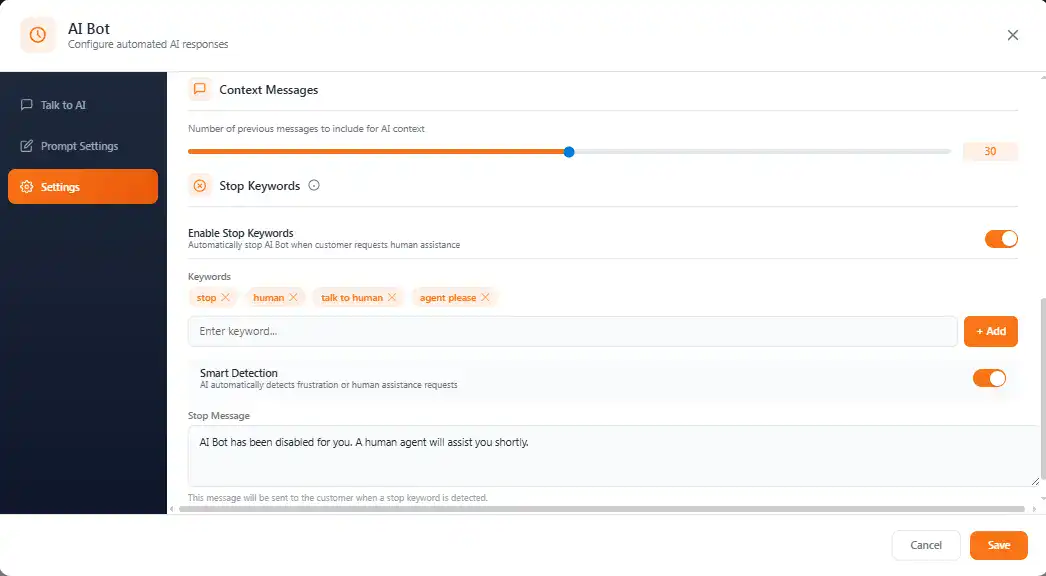
Stop Keywords & Smart Detection

Let users stop bot replies by typing a keyword. Plus, smart frustration detection automatically pauses AI when user seems annoyed!

🔑
Stop Keywords

User types keyword (e.g., "STOP") to disable bot for that chat

🧠
Smart Detection

AI automatically detects frustrated users and pauses replies

👤
Human Handoff

Seamlessly transfer to human agent when needed

💬
"AI Bot has been disabled for you. A human agent will assist you shortly."
WhatsApp AI Bot Stop Keywords - Smart Frustration Detection and Human Handoff Feature
💡
Important: Browser-Based Extension
Lion CRM is a Chrome extension, not a cloud-based service. The AI Bot works only when your computer is ON and WhatsApp Web tab is active in your browser. Keep the tab open for uninterrupted automation!
🎯
Smart Automation, Human Touch
Lion CRM's WhatsApp AI chatbot combines intelligent automation with customizable delays, business context, appointment booking, and smart detection to deliver responses that feel personal and authentic — not robotic! Works seamlessly as long as your browser and WhatsApp Web tab are active.
📤 Feature 2 — Broadcasting

Bulk Broadcast Campaign

Watch Video13:32

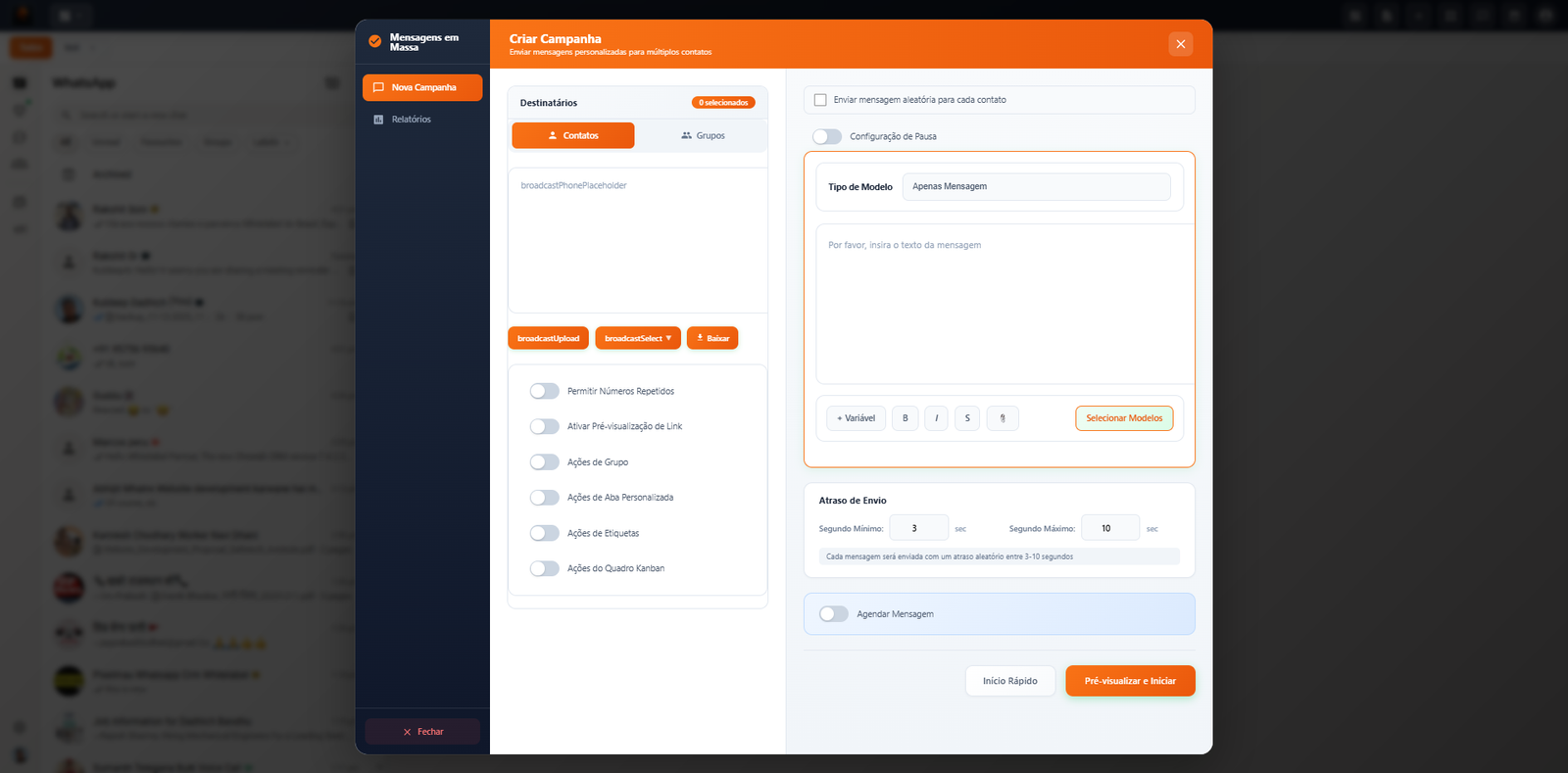
Send personalized WhatsApp messages to your entire contact list in minutes. Import from CSV files, groups, labels, tabs, or your Kanban pipeline—every message customized with dynamic variables. Smart delay intervals keep your account safe, while real-time campaign dashboards track delivery, failures, and overall performance.

  • CSV & Group Import
  • Smart Delay Intervals
  • Live Campaign Dashboard
  • Contact Export
  • Scheduled Campaigns
  • Repeat Campaigns
Campaign Messaging Feature
📊

Campaign Analytics

Real-time tracking

1,000 Contacts

Reached in minutes

Schedule & Recurring Broadcasts

Don't just send messages — schedule them for the perfect time and set them to repeat automatically. Your campaigns run on autopilot!
🕐

Schedule Broadcast

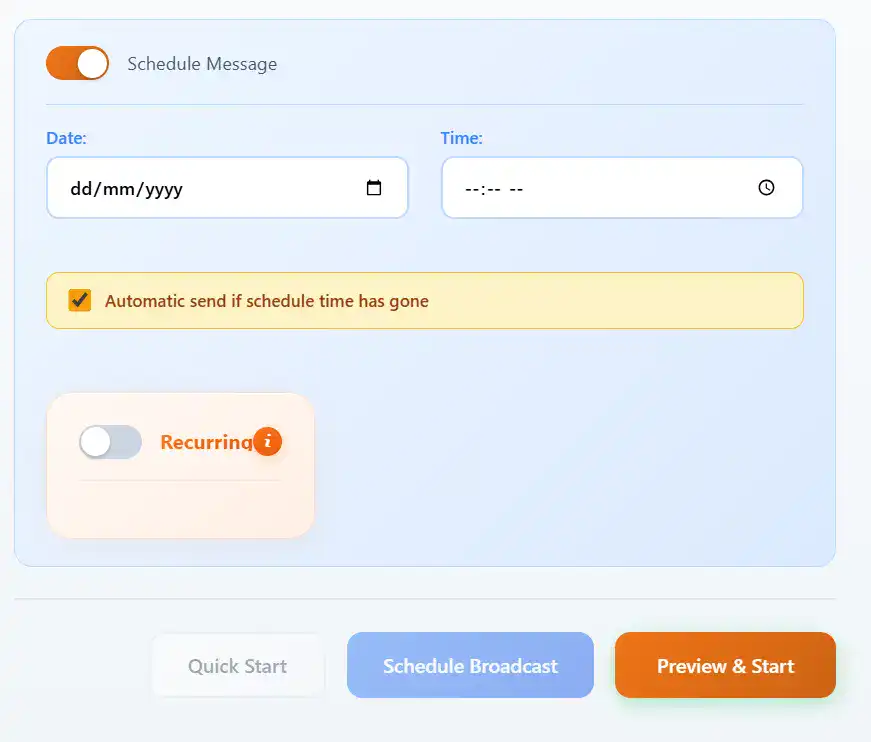
Set the perfect date and time for your messages. Schedule campaigns in advance and let Lion CRM send them automatically — even if your PC is running and WhatsApp Web is open.
  • 📅 Pick Date & Time: Choose exact date and time for broadcast
  • Auto-Send: Automatically sends if scheduled time has passed
  • 👁️ Preview & Start: Preview your campaign before scheduling
Schedule Message - Set date and time for WhatsApp broadcast
🔁

Recurring Broadcast

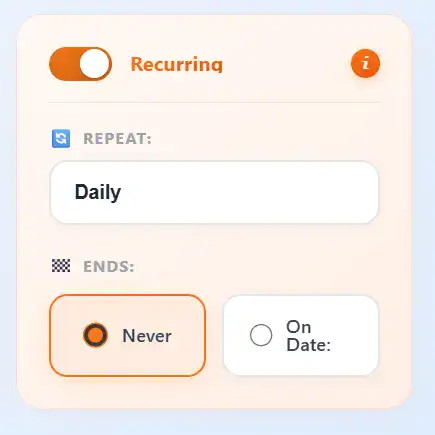
Set your scheduled broadcast to repeat automatically — daily, weekly, monthly, or yearly. Perfect for regular updates, reminders, follow-ups, and promotional campaigns that need to run consistently.

  • 📊 Flexible Frequency: Daily, Weekly, Monthly, or Yearly repeat
  • 📆 Weekly Custom Days: Select specific days (Mon, Tue, etc.)
  • 🔄 Run Forever or Set End Date: Choose "Never" end or pick a date
  • Auto-Scheduled: After each broadcast, next one is auto-scheduled
Recurring Message - Auto-repeat WhatsApp broadcasts daily weekly monthly

Legal Disclaimer — Broadcast Campaign Policy

Lion CRM's Broadcast Campaign feature must be used in strict compliance with WhatsApp's Terms of Service and all applicable laws. Sending unsolicited bulk messages may violate WhatsApp policies and applicable anti-spam regulations in your jurisdiction.

  • User Responsibility: You are solely responsible for ensuring your broadcast campaigns comply with WhatsApp's Terms of Service and applicable telemarketing or anti-spam laws in your jurisdiction
  • 💳 Payment Provider Risk: Non-compliant use may lead payment providers (PhonePe, Razorpay, etc.) to review or suspend merchant accounts. Lotsofcode Pvt. Ltd. bears no liability for any payment gateway or license suspension arising from misuse of this feature
  • 🚫 Account Ban Risk: WhatsApp may restrict or permanently ban numbers that violate their anti-spam or bulk messaging policies. Lotsofcode Private Limited is not liable for any WhatsApp account restrictions resulting from use of this feature
  • 📋 Consent Required: Only send messages to contacts who have explicitly opted in to receive communications from you. Unsolicited messaging may result in account bans and legal liability under applicable law
  • Compliant Use: Use personalized, value-driven messages with proper delays between sends. Follow WhatsApp Business Policy guidelines to maintain account health and ensure long-term campaign effectiveness
🗺 Feature 3 — Lead Gen

G Map Extractor

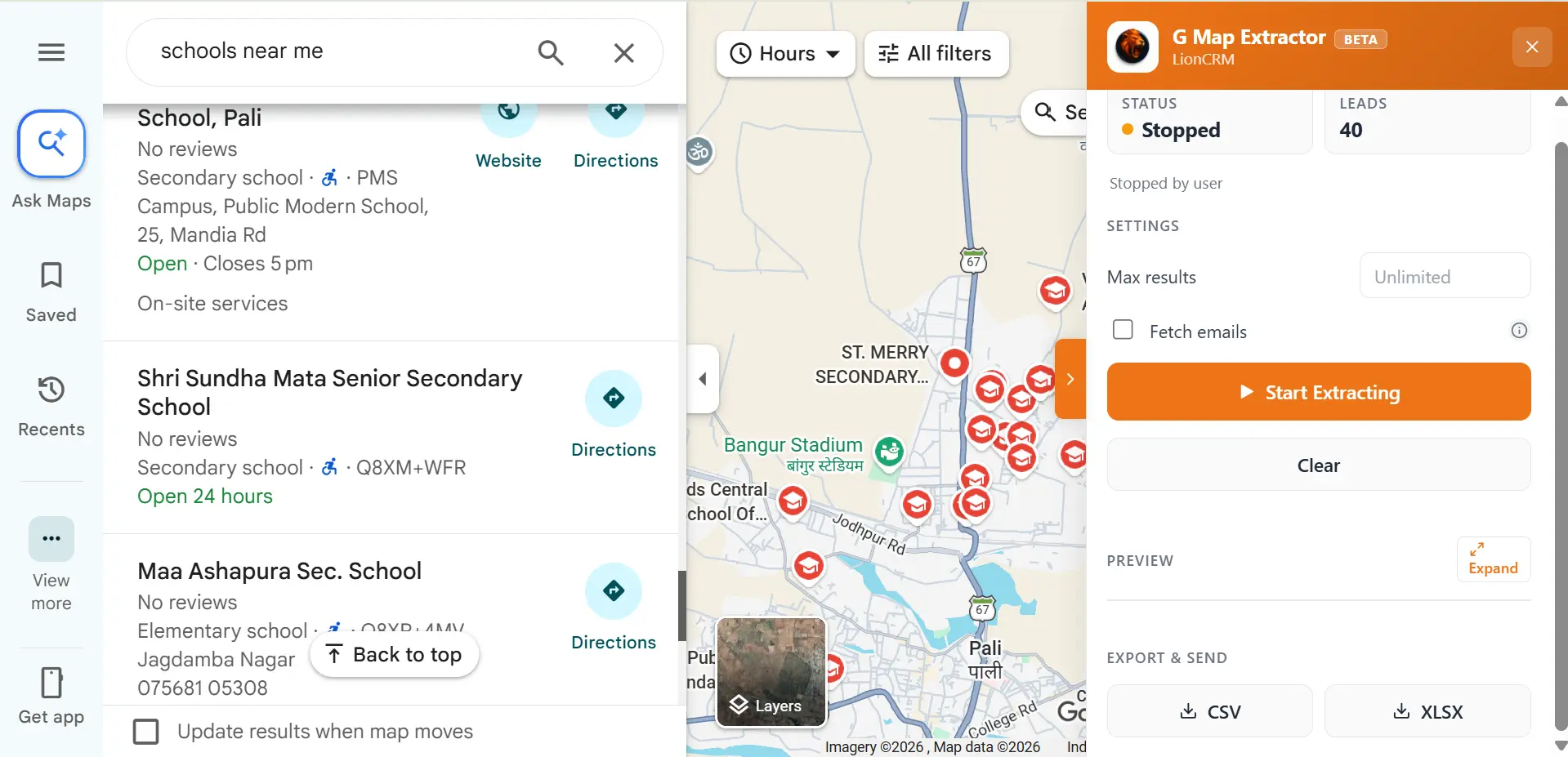
Extract business leads directly from Google Maps without any manual copy-paste. Search for any business category and area, then start extraction — Lion CRM captures business name, phone number, category, rating, and address automatically. Expand the live preview table to review results, pause and resume anytime, and export your full leads list as CSV or XLSX in one click. Enable email fetching for even richer lead data.

  • Bulk Lead Extraction
  • CSV & XLSX Export
  • Optional Email Fetching
  • Expandable Live Preview
G Map Extractor — Extract Business Leads from Google Maps
📍

Extract Leads

From Google Maps

🔀 Feature 4 — WhatsApp Chatbot Builder

Chatbot Flow

Watch Video17:29

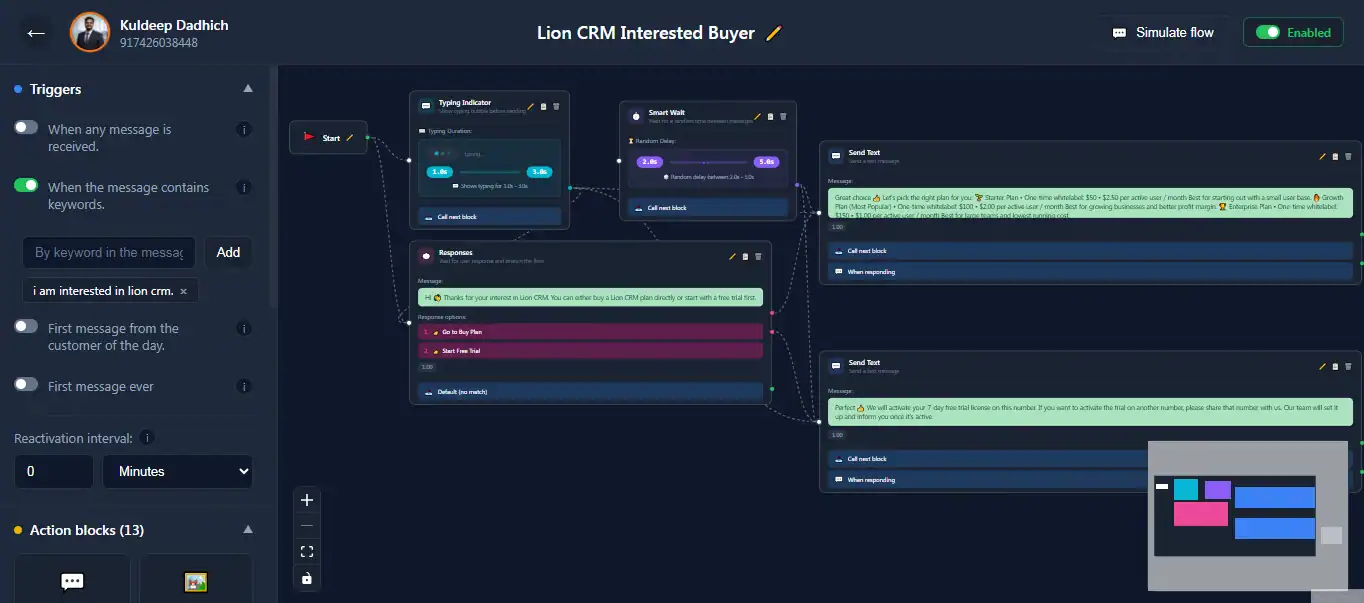
Design rule-based WhatsApp chatbots using a visual drag-and-drop builder—zero coding needed. Set up keyword triggers, add typing indicators for human-like delays, create branching responses, and attach CRM actions like label assignment or tab routing. Test every flow in the built-in chat simulator before going live.

Rule-Based Automation

Unlike AI Bot which uses artificial intelligence, Chatbot Flow lets you create custom automation rules based on specific triggers and conditions. Perfect for WhatsApp keyword auto reply, label-based actions, and CRM automation. Set it once, runs automatically while your PC is on & browser is open!

Trigger-Based 🏷️ Label Rules 📋 CRM Actions 🔄 Reactivation Scheduled ⏸️ Pause Rules
WhatsApp Chatbot Builder - Rule-Based Automation Flow Dashboard in Lion CRM
🔀
Flows Active
Rules Running

Powerful Flow Features

Flow Triggers

Define when your WhatsApp automation flow should activate.

Triggers
When any message is received. i
When the message contains keywords. i
lion crm interested ×
First message from the customer of the day. i
First message ever i
Reactivation interval: i
Minutes
🎯

Action Blocks

Choose what happens when a flow triggers in your WhatsApp automation.

Action blocks (15)
💬
Send Text
🖼️
Send Image
🎥
Send Video
🔊
Send Audio
📄
Send Document
💬
Responses
📋
Send List
Wait Input
👥
Group Action
📁
Tab Action
🏷️
Label Action
📊
CRM Action
⏱️
Smart Wait
⌨️
Typing Indicator
🔗
Add Fluxo
📋

General Rules

Control response behavior with smart rules for groups and timing.

Rules
Allow responding to groups i
Allow responses only on specific days and times i
Do not respond if the conversation is open i
Customize or disable the signature i
Simulate typing or recording audio i
Enable pause i
Pause Client Keywords
Pause the chatbot if th...
Pause Server Keywords
Pause when bot sends...
Pause Duration
00 : 30
📊

CRM Rules

Filter responses based on CRM contact status.

Rules
Do not respond if the contact is in a CRM i
Do not respond to CRMs i
Respond only to CRMs i
🏷️

Label Rules

Filter responses based on contact labels.

Rules
Do not respond if the contact is labeled i
Do not respond to labels i
Respond only to labels i
📁

Custom Tab Rules

Filter responses based on custom tabs.

Rules
Do not respond if the contact is in custom tab i
Do not respond to custom tabs i
Respond only to custom tabs i
⚙️

Global Settings

Configure away message, waiting time, and block intervals for your flows.

Global settings:
When the WhatsApp page is reloaded, this setting will be lost for conversations that are waiting for a response
Minutes

This message will be sent automatically when the user does not respond within the specified time.

Minutes
📦

Import, Export & Quick Theme

Save your WhatsApp automation flows and reuse them anytime! Export your configured flows as backup, or import pre-built flows to get started instantly. Plus, switch between Dark & Light theme directly from here — no need to open settings!

📤 Export 📥 Import 🌙 Theme
📂 Organize

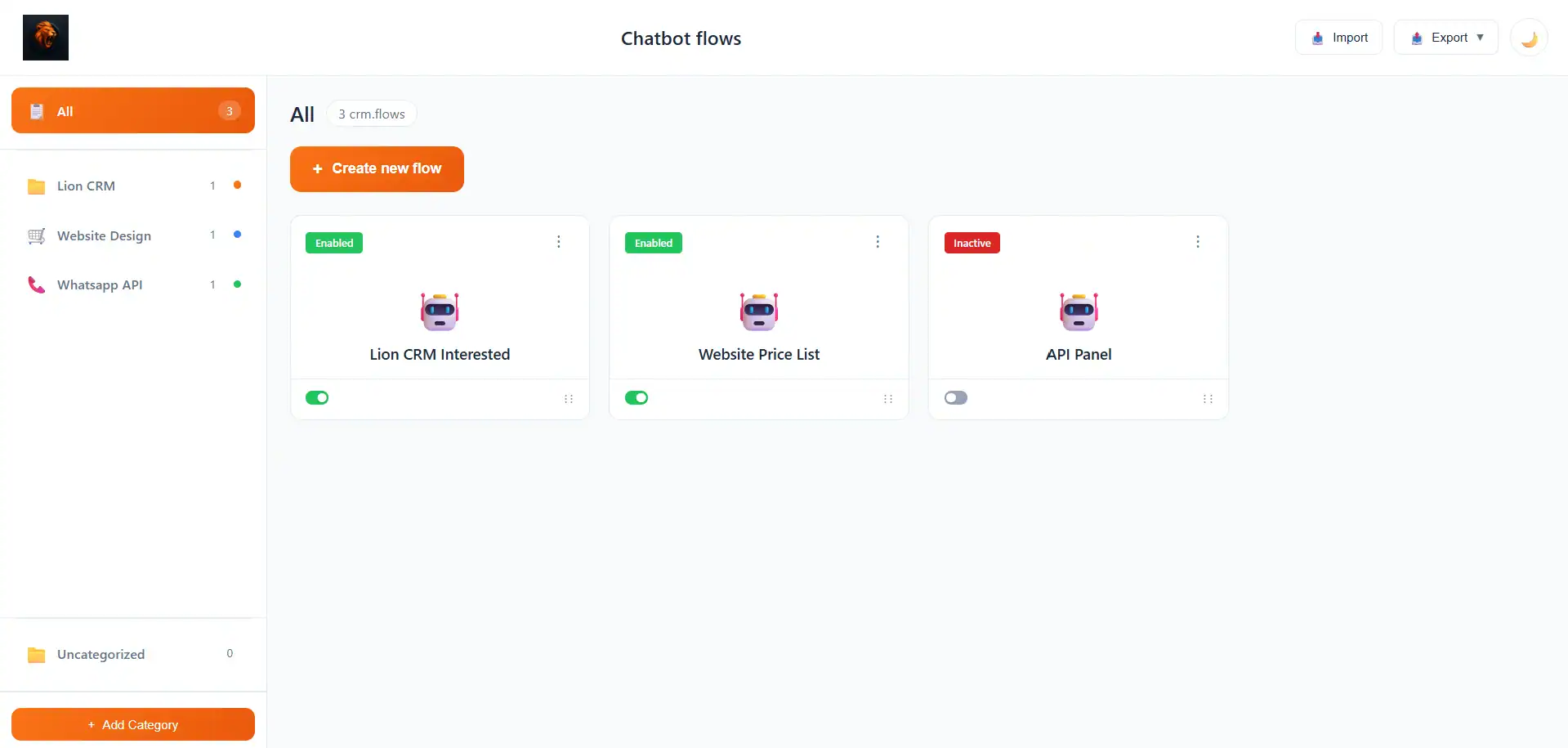
Flow Categories

Organize your Fluxo (chatbot flows) into custom categories for better management. Create folders like Sales, Support, Onboarding — keep your automation structured as you scale. Each flow shows its status, category, and can be activated, paused, or deleted directly from the dashboard.

📁 Create unlimited categories
🔄 Drag flows between categories
🟢 Active/Inactive status per flow
Create new flows per category
WhatsApp Chatbot Flow Categories Dashboard - Organize Fluxo Flows into Custom Folders with Active Inactive Status in Lion CRM
🧪 Test Before Deploy

Chat Simulator

Don't guess — test your chatbot flow before it goes live! The built-in simulator lets you preview exactly how your automation will respond to different messages.

💬 Send test messages
👁️ Preview responses
🔄 See flow execution
Verify before live
💬 Chat simulator

i am interested in lion crm.

05:51 PM

Hi 👋 Thanks for your interest in Lion CRM.
You can either buy a Lion CRM plan directly or start with a free trial first.

1. 👉 Go to Buy Plan
2. 👉 Start Free Trial

05:52 PM

2

05:52 PM

Perfect 👍
We will activate your 7-day free trial license on this number.

05:52 PM

How It Works

1
Set Trigger
Choose when flow should activate
2
Add Conditions
Define rules & filters
3
Choose Actions
Select what happens next
4
Activate Flow
Let automation do the work!
🚀
AI Bot + Chatbot Flow = Complete Automation
Use AI Bot for intelligent, context-aware conversations and Chatbot Flow for rule-based automation. Together, they create the most powerful WhatsApp automation system — handling everything from smart replies to complex CRM workflows!
📑 Feature 5 — Organization

Custom Tabs

Watch Video7:45

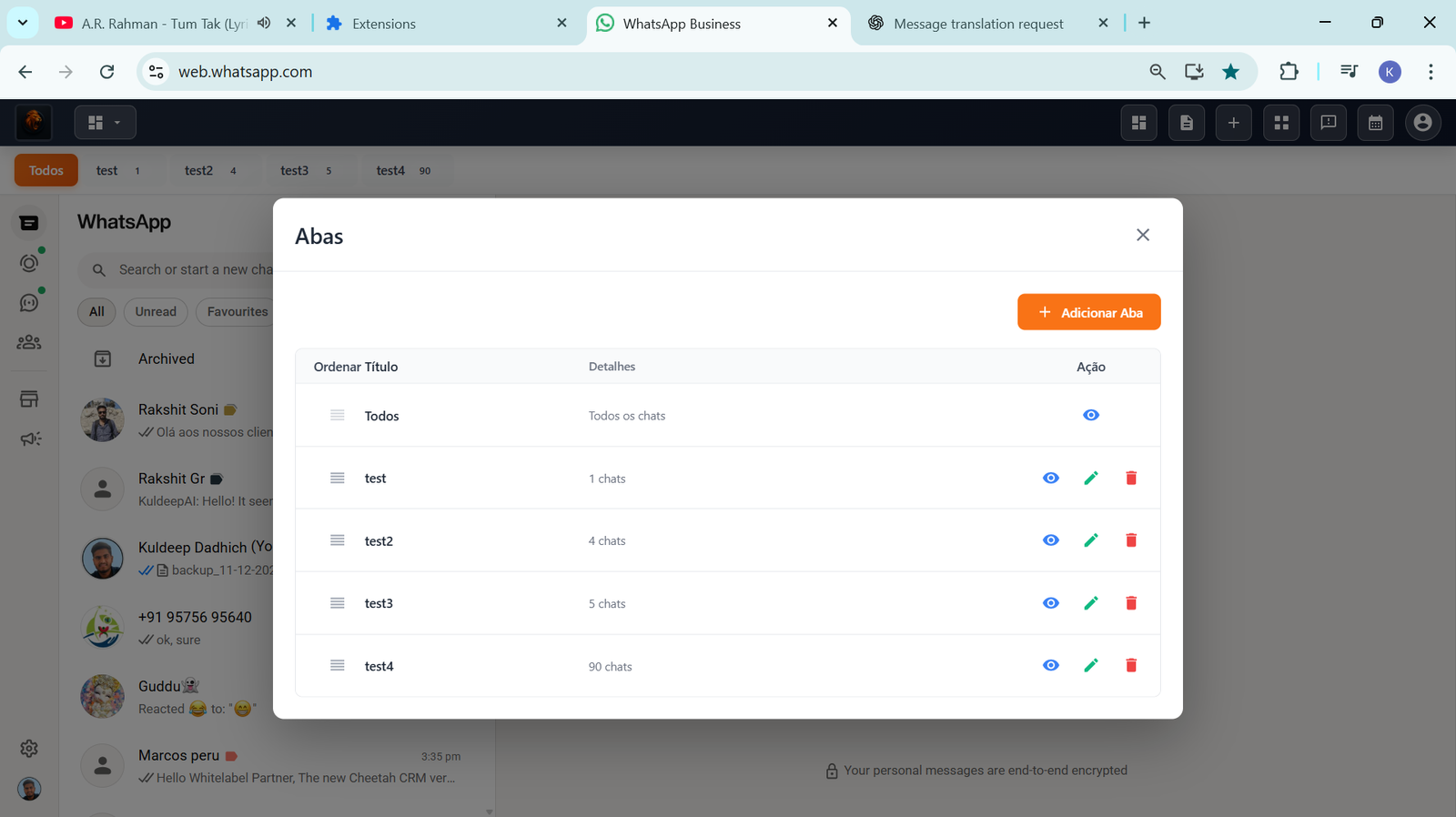
Sort your WhatsApp conversations into personalized folders that match your workflow. Build as many tabs as you need—leads, VIPs, support tickets, partners—and drop individual chats, groups, or labeled contacts into any tab. There is no contact limit, so your entire customer base stays organized and within reach.

  • Unlimited Folders
  • Group & Label Sync
  • Zero Contact Limits
Tabs Feature
📁

Unlimited Tabs

Organize freely

📝 Feature 6 — Productivity

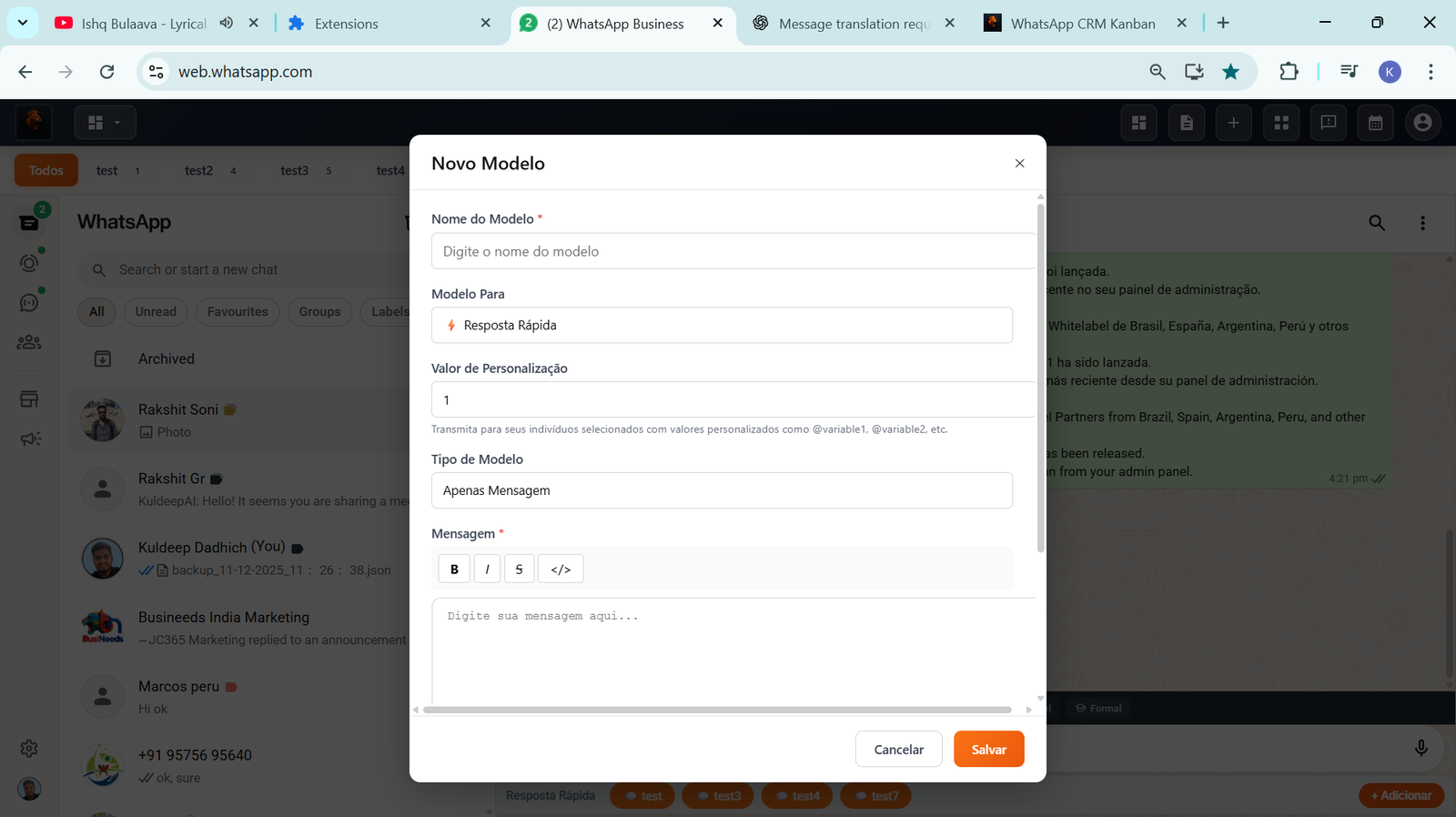
Message Templates

Watch Video7:43

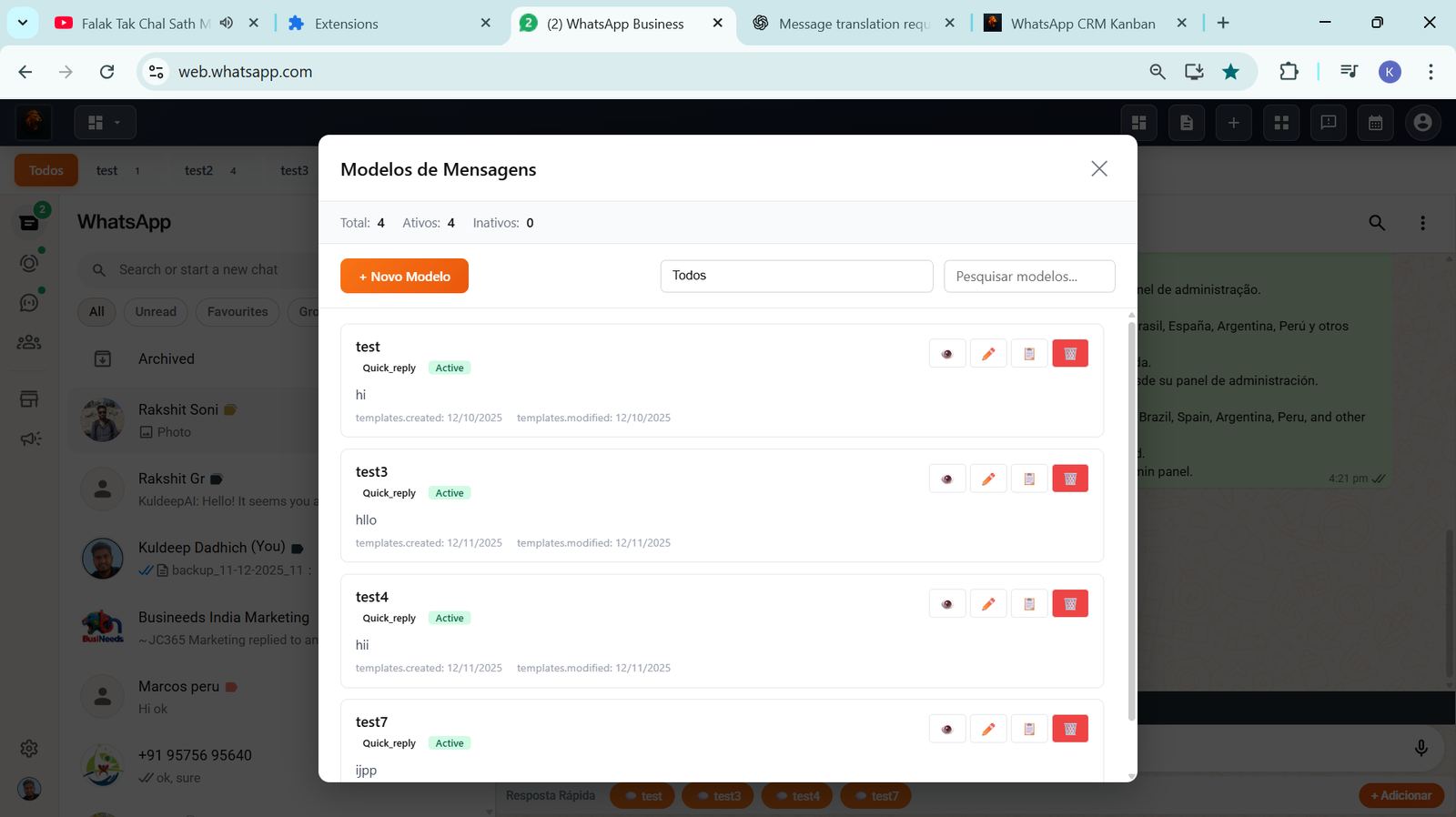
Craft ready-to-send message blueprints and reuse them across chats, tabs, groups, labels, Kanban stages, and quick replies. Pick from 8 content formats—plain text, image or video attachments, documents, audio clips, contact cards, interactive polls, list menus, and product catalogs. Write once, deploy everywhere.

  • 8 Content Formats
  • Variable Personalization
  • Polls & Catalogs
  • Cross-Feature Reuse
Templates Feature
🎨

8+ Template Types

For every need

⚡ Feature 7 — Speed

Quick Reply

Watch Video7:43

Answer customers in a single tap with pre-built quick replies. Create them inside the template manager or directly from the chat window toolbar—always one click away at the bottom of every conversation. Supports all 8 message formats including rich media, polls, and product cards for fast, professional responses.

  • Single-Tap Sending
  • Chat Window Toolbar
  • Full Media Support
Quick Reply Feature
💬

Instant Replies

Save 80% time

📋 Feature 8 — Pipeline

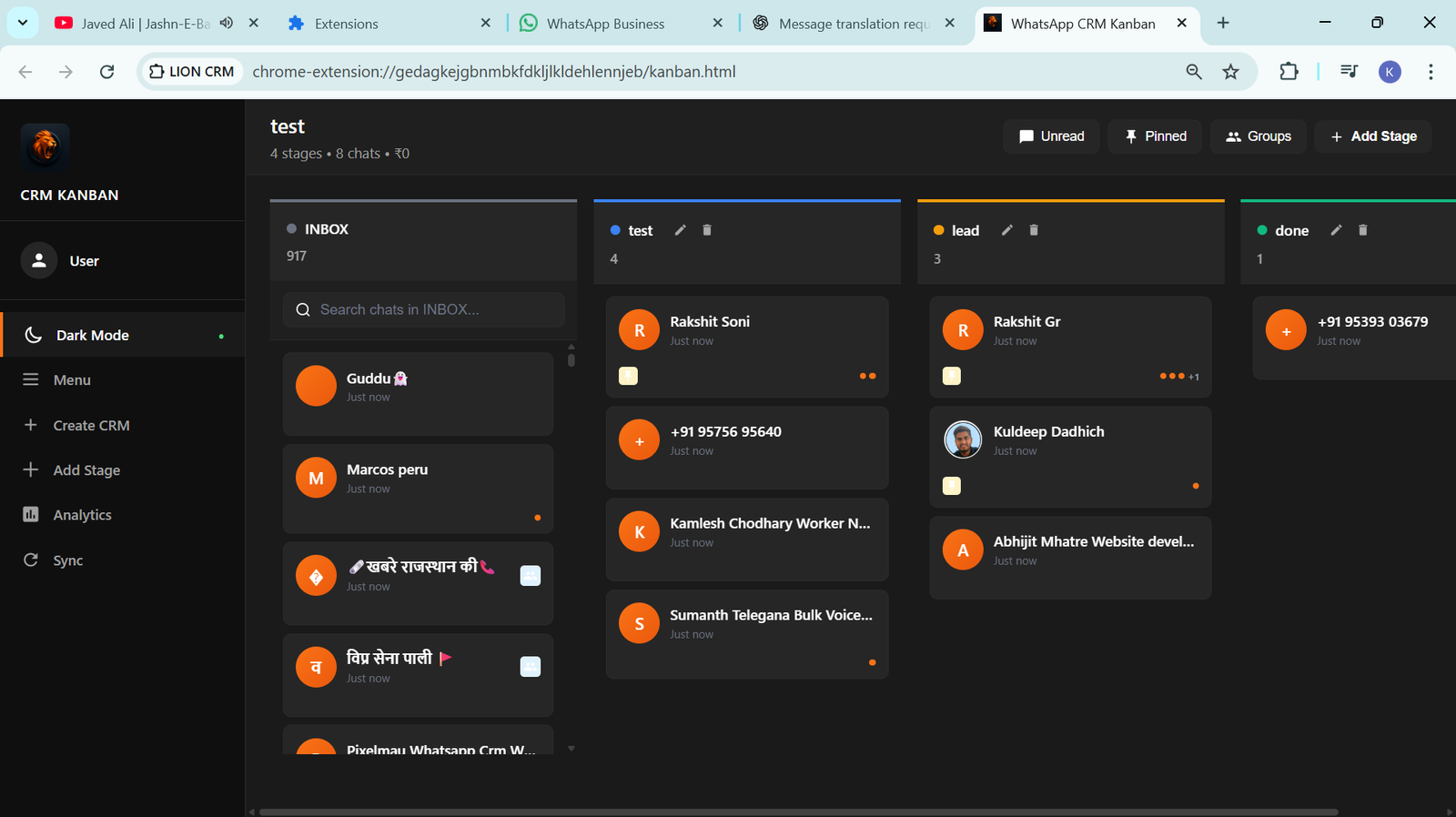
Kanban Board

Watch Video7:45

Map out your entire sales journey on a visual drag-and-drop board. Move contacts through custom pipeline stages—from first inquiry to closed deal—with a simple drag gesture. Spin up separate boards for different projects, toggle between dark and light views, and manage WhatsApp labels and tabs without leaving the board.

  • Visual Drag & Drop
  • Custom Pipelines
  • Theme Toggle
  • Multi-Board Support
Kanban Board Feature
🎯

Visual Pipeline

Track every deal

📅 Feature 9 — WhatsApp Meeting Scheduler

Smart Calendar

Watch Video8:36

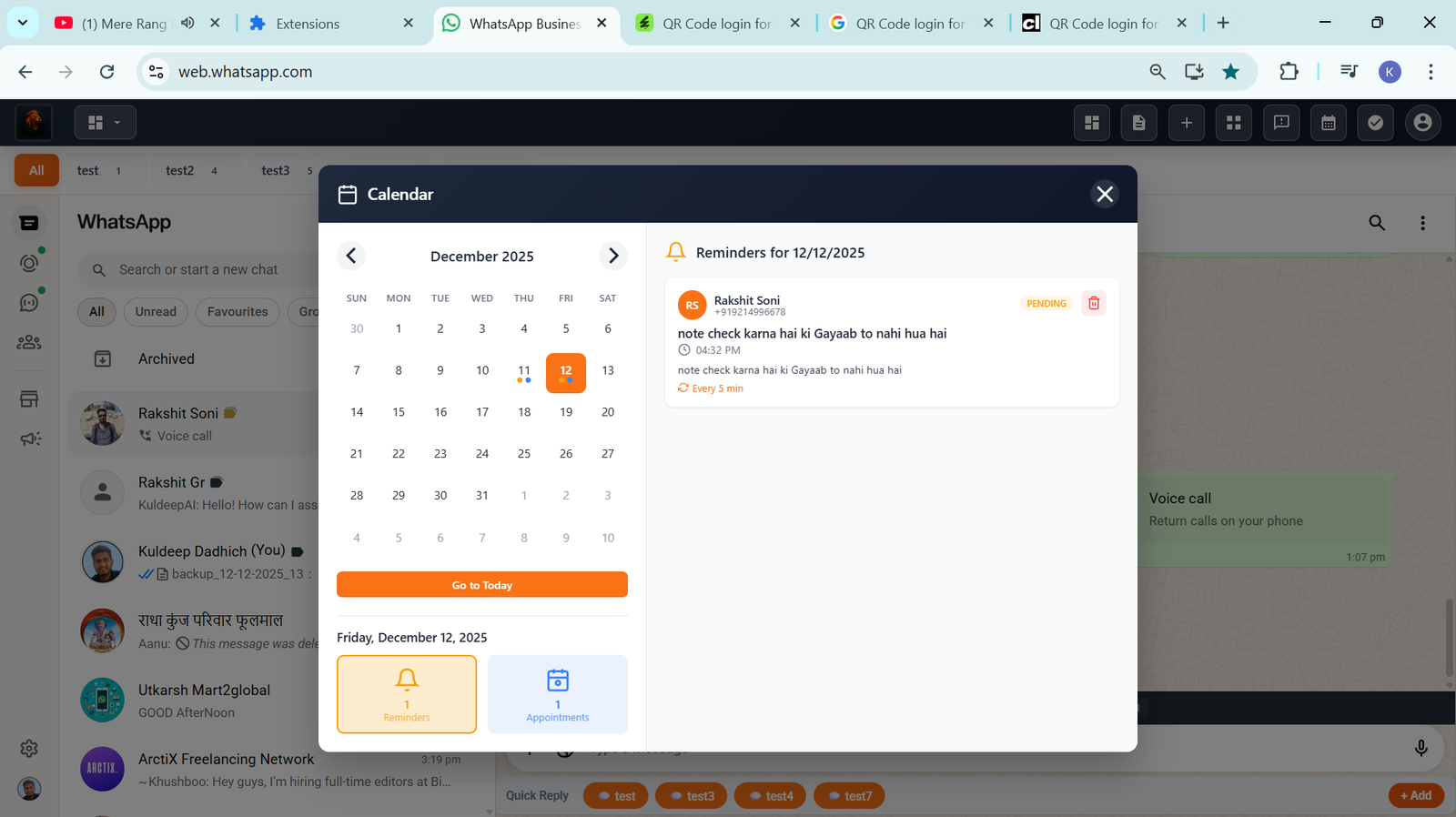
Your all-in-one WhatsApp scheduling hub for appointments, reminders, and tasks. Book meetings, set follow-up alerts, manage daily to-do lists, and view everything on a clean day, week, or month calendar—so you never let a conversation or deadline slip through the cracks.

📆

Visual Calendar

View and manage your complete appointment list in one place. Track schedules using the visual calendar and stay on top of tasks with smart reminders. Organize your day, week, or month effortlessly.

📋
Complete Appointment List
👁️
Day / Week / Month View
🔔
Smart Reminders
🎯
Centralized Scheduling
WhatsApp Meeting Scheduler - Visual Calendar with Appointment List and Smart Reminders in Lion CRM
✨ NEW

To-Do Task List

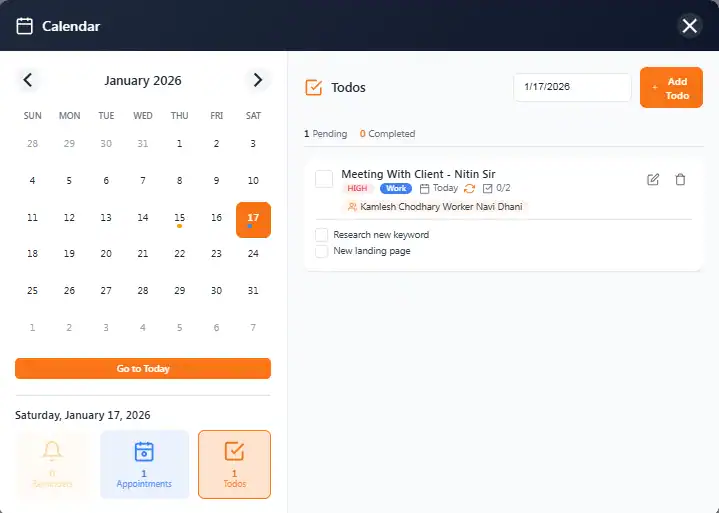
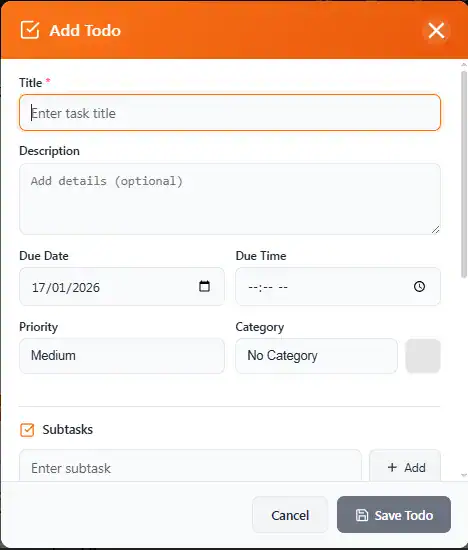
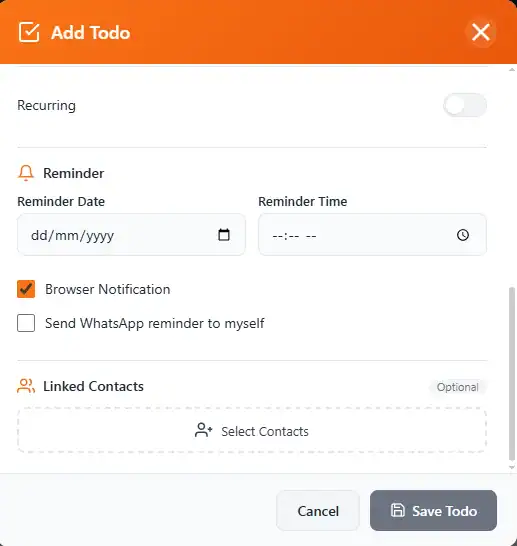
Introducing the all-new WhatsApp to do list feature! Create tasks with titles, descriptions, due dates, priorities, and categories. Add sub-tasks, set recurring schedules, and get reminders via browser notification or WhatsApp.

📝
Title & Description
Due Date & Time
🔥
Priority Levels
🔗
Link with Contacts
WhatsApp To Do List - Task Manager with Priority, Categories and Due Dates in Lion CRM

Complete Task Management

Everything you need to manage tasks, set priorities, and stay productive with the most powerful WhatsApp task manager available.

📝
Title & Description
Add detailed task info
📅
Due Date & Time
Set deadline for tasks
🔥
Priority Levels
High, Medium, Low
🏷️
Categories
Organize by type
📂
Sub-Tasks
Break down big tasks
🔄
Recurring Tasks
Auto-repeat schedules
🔔
Smart Reminders
Never miss deadlines
👤
Contact Linking
Connect to WhatsApp
Priority
🔴 High 🟡 Medium 🟢 Low
Categories
💼 Work 👤 Personal ⚡ Urgent 🛒 Shopping 💚 Health
🔔
Browser Notification Get desktop alerts
💬
Self WhatsApp Reminder Send reminder to yourself
📝 Add Task - Title & Description
WhatsApp Task Manager - Add To-Do Task with Title, Description and Due Date
🔔 Reminder & Contact Linking
WhatsApp Appointment Booking - Task Reminder with Contact Linking Feature
🎯
Your Complete Productivity Hub
Smart Calendar combines WhatsApp appointment booking, visual calendar, and the new to-do task manager into one powerful feature. Schedule meetings, track tasks, set reminders, and link everything to your WhatsApp contacts — stay organized and never miss a follow-up!
👤 Feature 10 — CRM

Profile Chat

Watch Video8:36

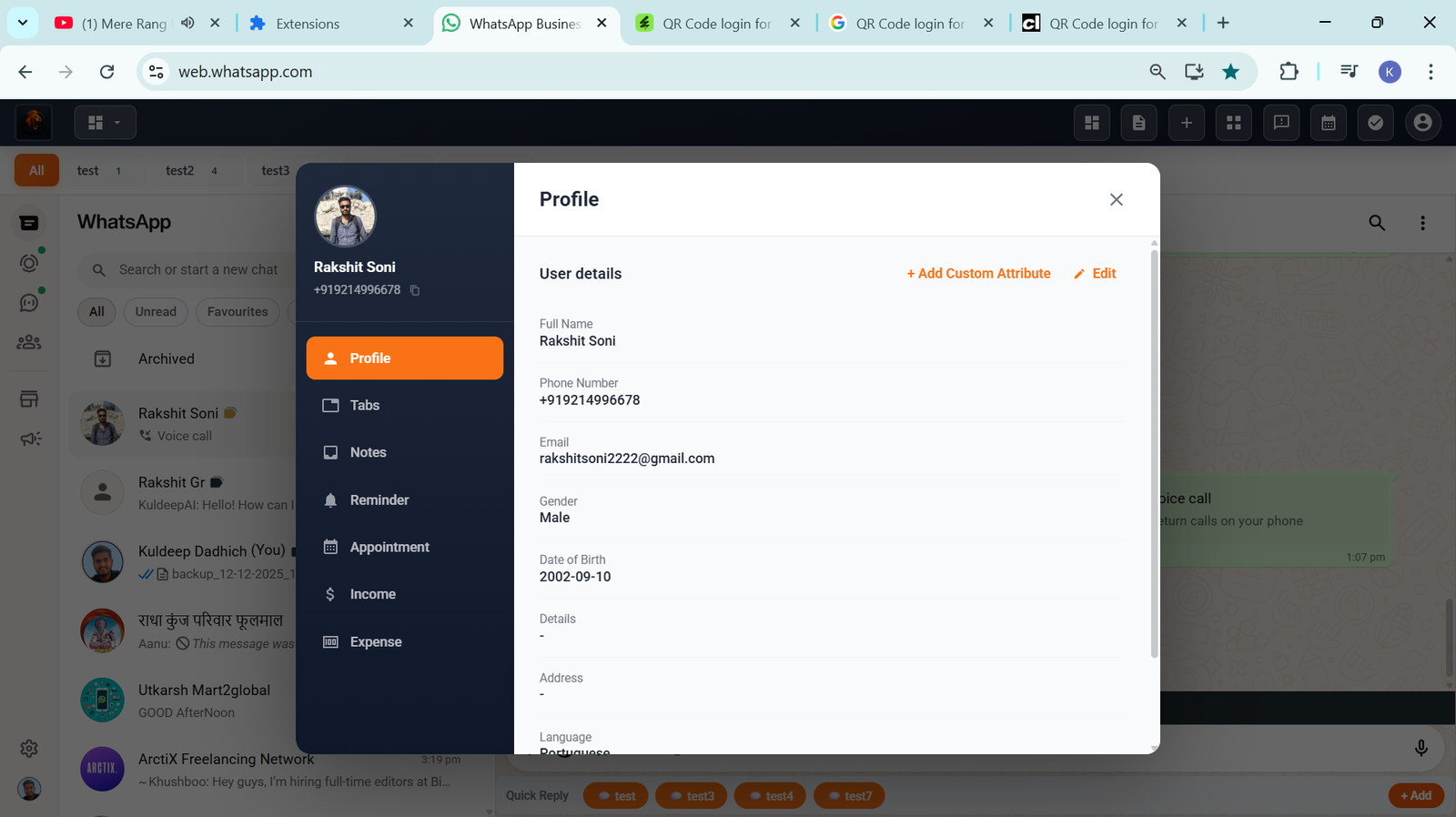
Get complete control over every conversation with Lion CRM's Profile Chat feature. Access the CRM button at the top of each chat for instant profile management — view and edit full profile details, manage Tabs, capture Notes, set Reminders, track Appointments, record Income, and log Expenses—all in one place.

  • Profile — Complete contact card with custom attributes you define
  • Tabs — Instantly see or assign contacts to your custom tab groups
  • Notes — Capture deal insights, client preferences, or meeting takeaways
  • Reminder — Never miss a callback — set topic, date, repeat & snooze
  • Appointment — Schedule meetings with attendees, reminders & status tracking
  • Income — Track revenue per client with multi-currency support — INR, USD, EUR, GBP & more
  • Expense — Log costs per contact with categories, payment methods & invoicing
WhatsApp CRM Profile Chat - Full Contact Management with Profile Tabs Notes Reminder Appointment Income Expense Multi-Currency in Lion CRM
💰

Multi-Currency

INR, USD, EUR & more

Add Income
Amount *
Enter amount
Date
13/03/2026 📅
Category
Payment Received
Payment Received
Sale
Service Fee
Commission
Refund Received
Other
+ Add Custom Category
Payment Method
Cash
Cash
Cheque
Other
Paypal ✦
+ Add Custom Method
Description *
e.g., Payment for services
Reference / Invoice No.
e.g., INV-001
Status
Completed
Completed
Pending
Cancelled
+ Add Custom Status
🔄 Recurring Transaction
Repeat Every
Monthly
Daily
Weekly
Monthly
Quarterly (3 months)
Yearly
Never ends
Cancel Add Income
Currency Settings
Indian RupeeINR
$
US DollarUSD
EuroEUR
£
British PoundGBP
د.إ
UAE DirhamAED
Saudi RiyalSAR
ر.ق
Qatari RiyalQAR
د.ك
Kuwaiti DinarKWD
د.ب
Bahraini DinarBHD
ر.ع
Omani RialOMR
¥
Japanese YenJPY
¥
Chinese YuanCNY
HK$
Hong Kong DollarHKD
NT$
Taiwan DollarTWD
S$
Singapore DollarSGD
RM
Malaysian RinggitMYR
฿
Thai BahtTHB
Rp
Indonesian RupiahIDR
R$
Brazilian RealBRL
🔧 Feature 11 — Tools

Chat Toolbar

Watch Video9:01

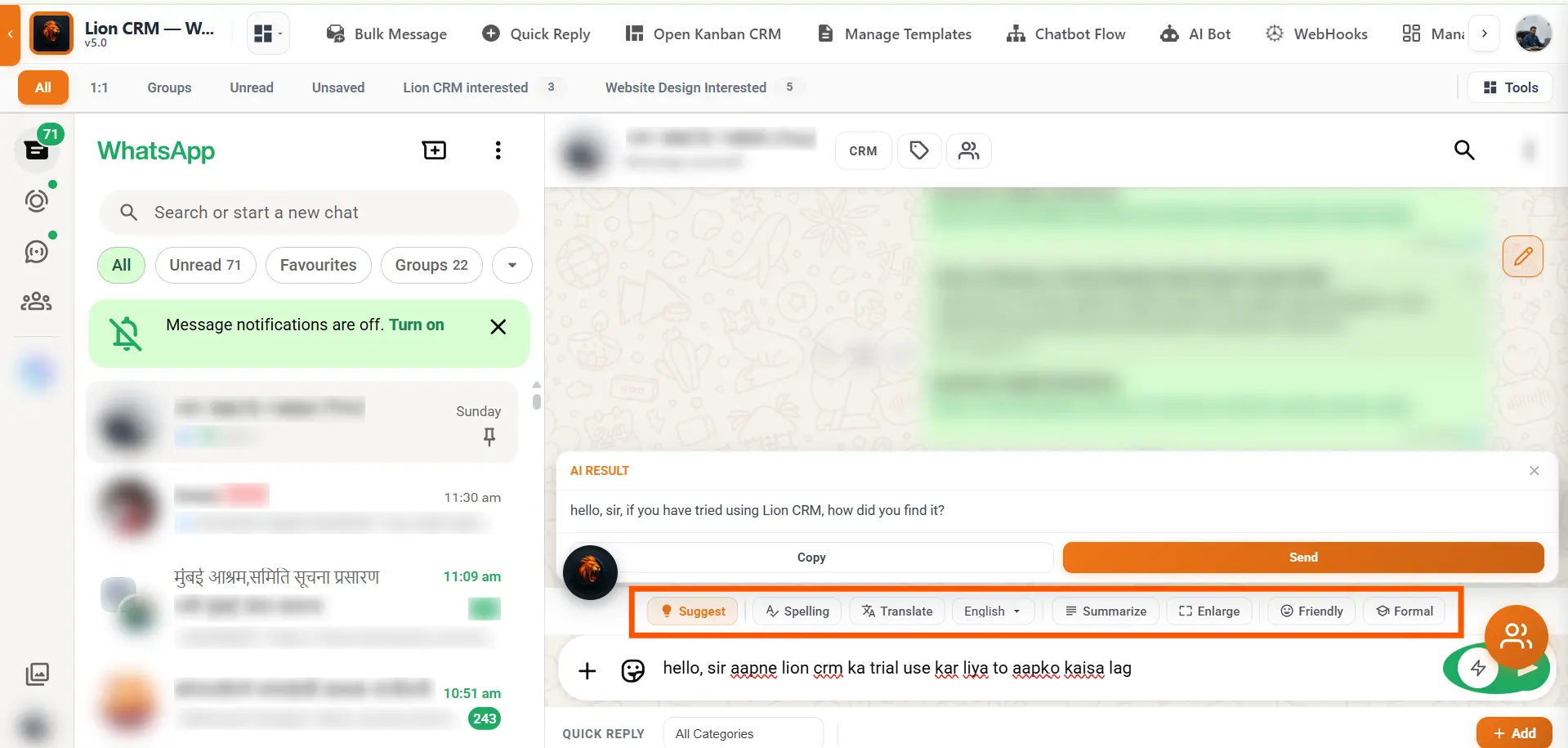
Communicate smarter with Lion CRM's powerful Chat Toolbar available at the bottom of every conversation. Set your preferred Tone and Language once—then type in your native language and instantly Translate messages with one click. Use Summarize to condense long messages, Enlarge to expand brief texts, switch to Friendly tone for casual chats, or go Formal for professional communication.

  • Auto Translate
  • Tone Switcher
  • Summarize/Enlarge
  • Audio Transcribe
Chat Toolbar Feature - Translate, Summarize, Tone Change in WhatsApp
🌐

One-Click Translate

Any language

✅ Feature 12 — Validation

Number Validator

Watch Video5:49

Stop wasting messages on invalid numbers! Lion CRM's Number Validator checks WhatsApp numbers before you send. Upload CSV files with thousands of numbers, run a validation campaign, and get real-time results showing valid and invalid numbers. Download reports with only valid numbers—protecting your account from spam detection and potential bans.

  • CSV Upload
  • Real-time Check
  • Download Reports
  • Ban Protection
Number Validator Feature
🔍

Smart Filter

Valid numbers only

📢 Feature 13 — Marketing

WhatsApp Status Automation

Watch Video5:49

Post WhatsApp status directly from your PC—no phone needed! Create text status with custom background colors, upload image or video status, and schedule posts for specific dates and times. The exclusive Auto Repost 24 Hours feature keeps your status live automatically. Use AI Regenerate to improve your messages instantly.

  • Text & Image Status
  • Schedule Posts
  • Auto Repost 24hrs
  • AI Regenerate
WhatsApp Status Automation Feature
🔄

Auto Repost

Every 24 hours

🤖 Feature 14 — AI Powered

AI Integration

Watch Video9:01

Supercharge your CRM with artificial intelligence using Lion CRM's Insert AI API Key feature. Choose from 3 AI providersChatGPT (OpenAI), Gemini (Google AI), or DeepSeek. Enter your API key, validate it, and unlock powerful AI-driven capabilities like smart replies, message suggestions, content generation, chat toolbar, and AI bot—all integrated directly into your workflow.

  • ChatGPT Support
  • Google Gemini
  • DeepSeek AI
  • One-Click Setup
AI Integration Feature

3 AI Providers

Your choice

🔗 Feature 15 — Automation

Powerful WebHooks

Watch Video12:28

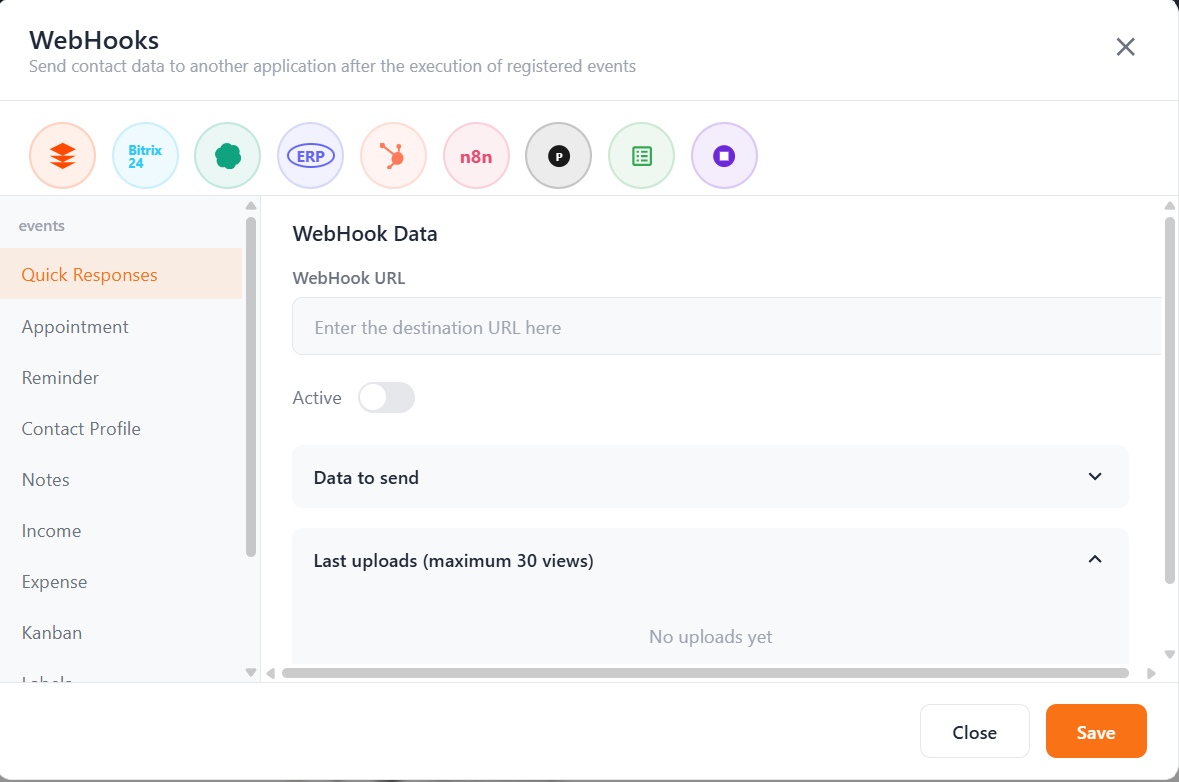
Build powerful automated workflows without writing a single line of code! Lion CRM's Webhooks feature automatically sends contact data to external applications whenever specific events occur. Connect to 1000+ apps including Zapier, Pabbly, N8N, Google Sheets, and Bitrix24. With 12+ event triggers—the most comprehensive webhook coverage available.

  • 12+ Event Triggers
  • Zapier & Pabbly
  • Google Sheets
  • No Coding Required
Powerful WebHooks Feature
🔄

1000+ Apps

Auto-connect

⚙️ Feature 16 — Developer

Configure API

Watch Video5:24

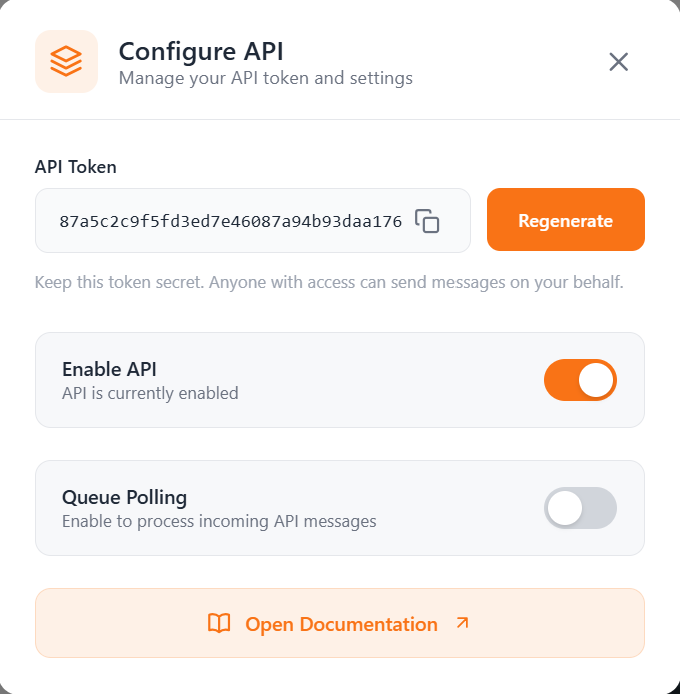
Unlock the full power of Lion CRM with the REST API. Generate API tokens, enable API access, and send messages, images, videos, locations, and contacts programmatically using tools like Postman. Perfect for developers building custom WhatsApp integrations and automating workflows. Complete API documentation included.

  • REST API Access
  • Send Media via API
  • Postman Ready
  • Full Documentation
Configure API Feature
📄

API Docs

Built-in

✍️ Feature 17 — Branding

Custom Signature

Watch Video9:01

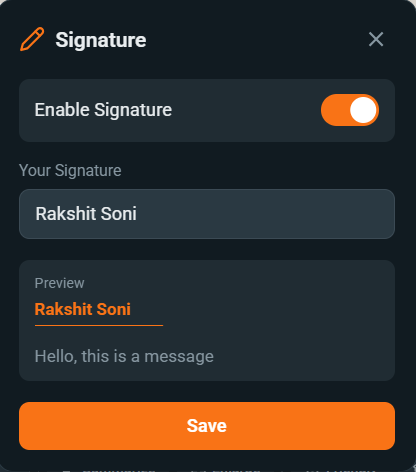
Add a professional signature to every message you send. Set up your agent name, business details, and custom text that automatically appends to your messages. Essential for team collaboration—identify which agent sent each message. Enable or disable with one click from the Chat Toolbar.

  • Auto-Append
  • Agent Identity
  • One-Click Toggle
  • Team Ready
Custom Signature Feature
📝

Pro Signature

Every message

🗣️ Feature 18 — Communication

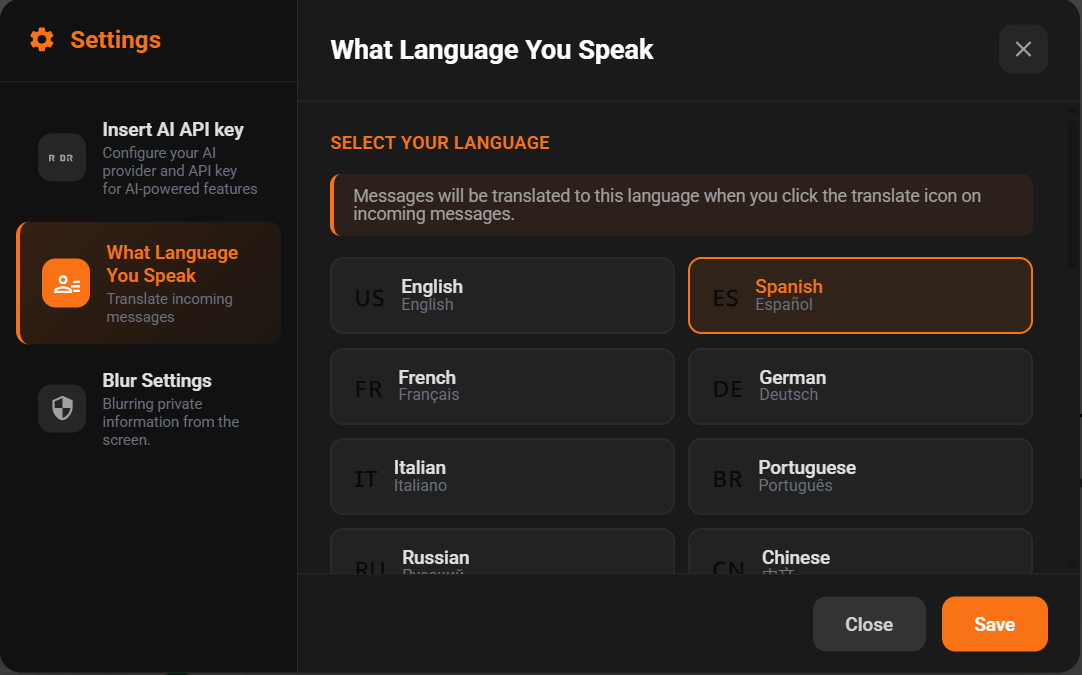
What Language You Speak

Watch Video40:17

Automatically detect and understand what language your customer speaks. This smart feature helps you set the preferred language for each contact, enabling AI-powered translations and responses in their native language. Break language barriers and communicate with customers worldwide—seamlessly and professionally.

  • Auto Detection
  • Customer Preference
  • AI Translation
  • Global Reach
What Language You Speak Feature
🌍

Auto Detect

Customer language

👁️ Feature 19 — Privacy

Blur Settings

Watch Video40:17

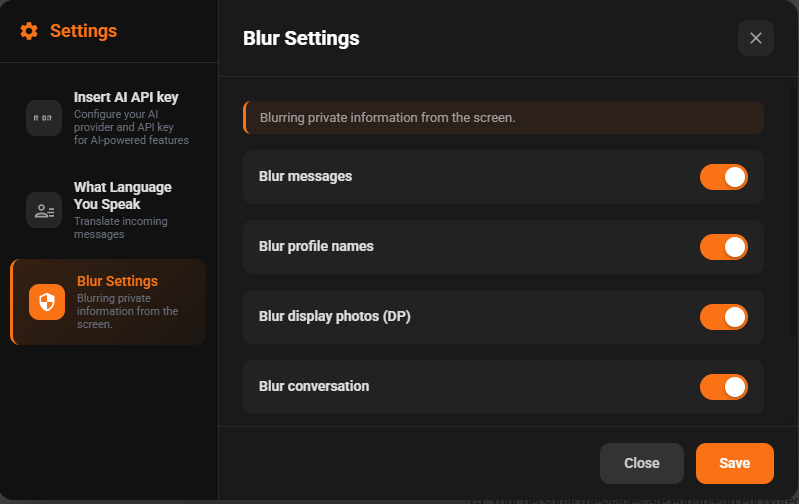
Protect sensitive information during screen sharing or presentations with Lion CRM's Blur Settings. Activate the blur feature to hide contact names, profile pictures, and chat content from view. Perfect for demos, team meetings, and client presentations where privacy matters. Toggle on/off instantly.

  • Screen Share Safe
  • Hide Contacts
  • Instant Toggle
  • Demo Ready
Blur Settings Feature
🔒

Privacy Mode

One-click blur

👥 Feature 20 — Team

Transfer to Agent

Watch Video8:05

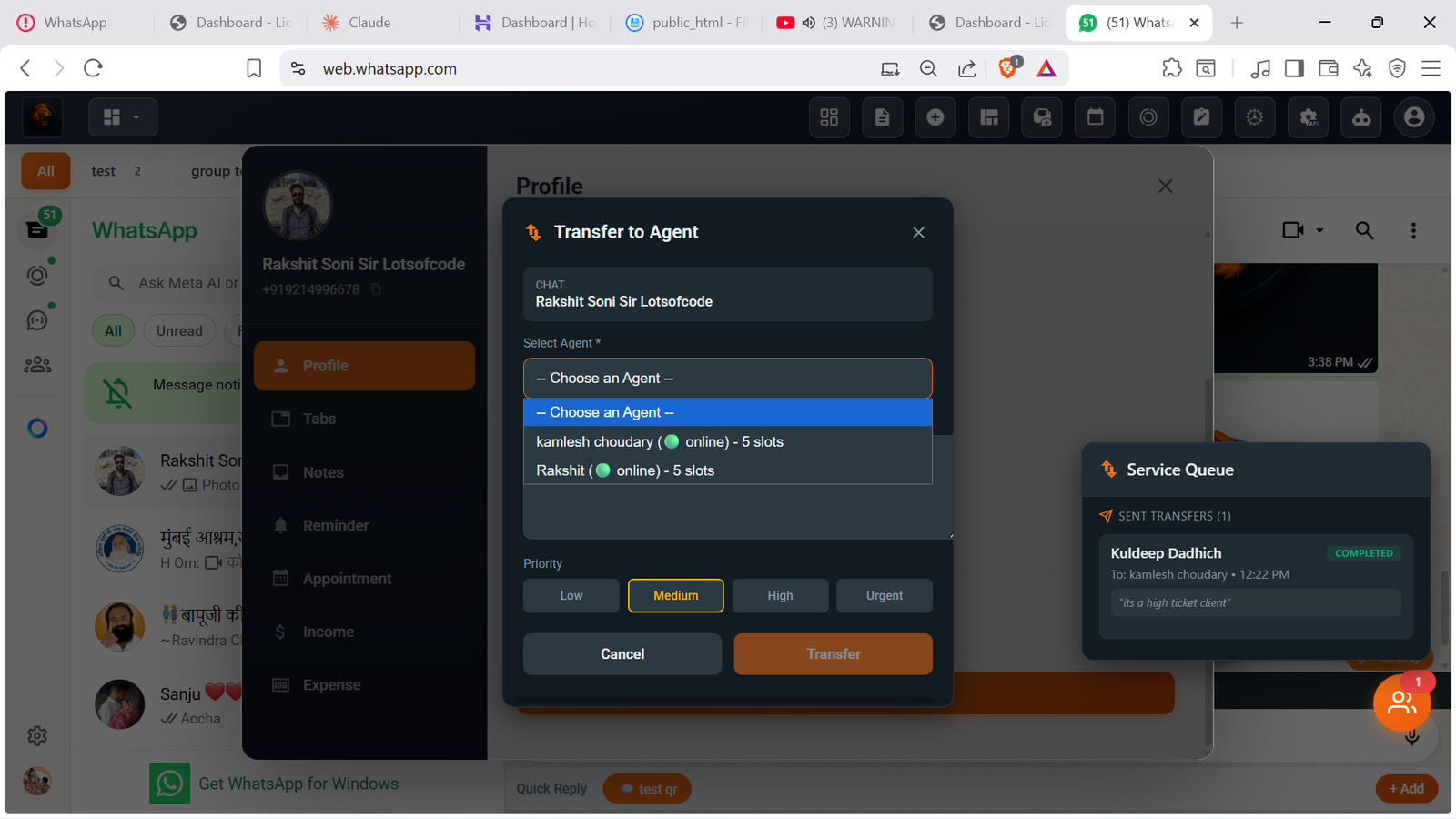
Seamlessly hand over customer conversations to team members with one click! Set 4 priority levels (Low, Medium, High, Urgent) so agents know which chats need immediate attention. Add notes for context, accept or decline transfers, and manage a service queue. Works when the same WhatsApp number is logged in on different devices or browsers.

  • One-Click Transfer
  • 4 Priority Levels
  • Context Notes
  • Accept/Decline
Transfer to Agent Feature
🔄

Team Handover

Instant transfer

📅 Feature 21 — Sales

Follow Up Automation

Watch Video5:15

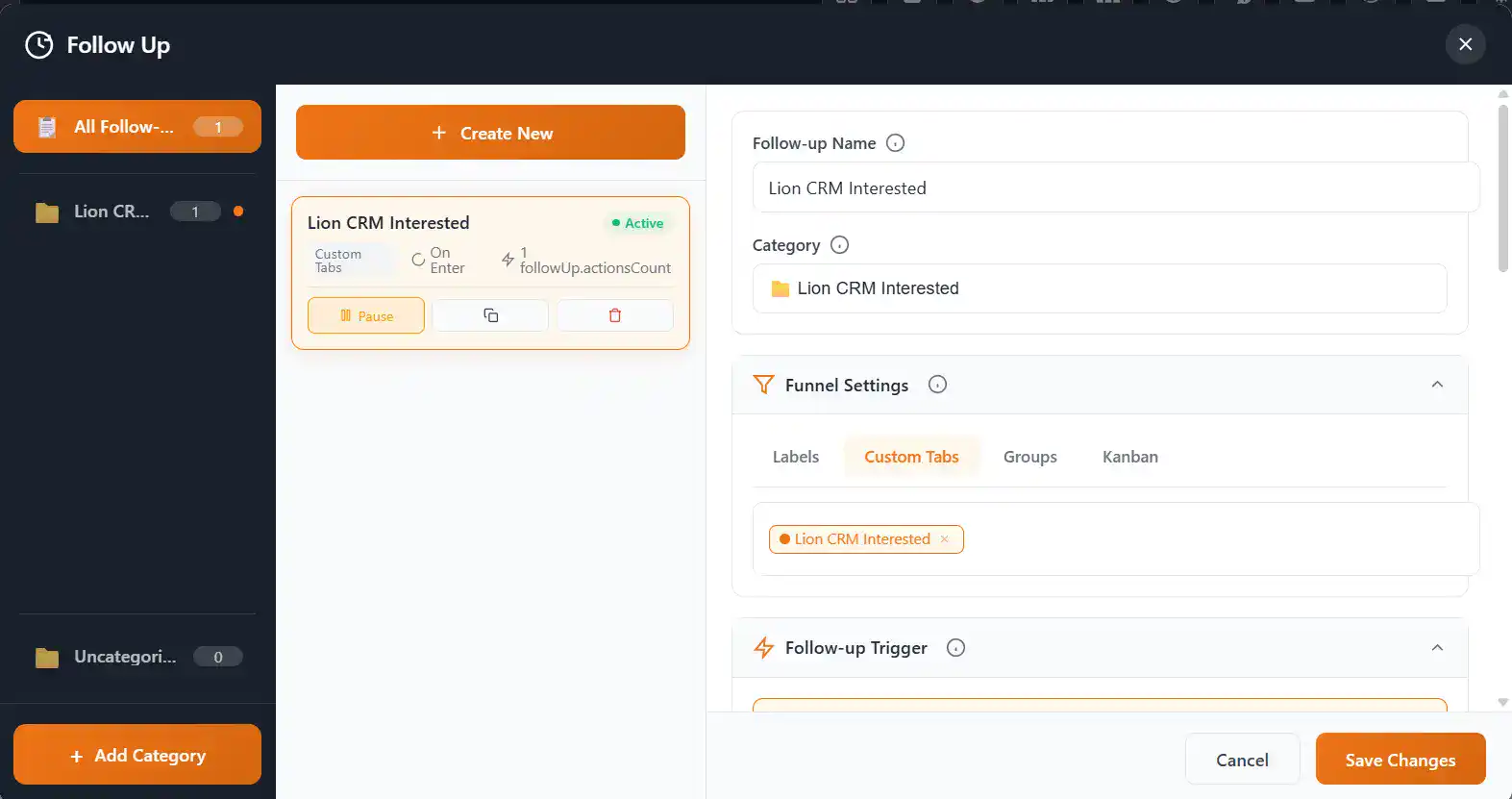
Never lose a lead again! Set up automated WhatsApp follow-up messages that trigger when contacts enter, leave, or stay in your funnel. Configure 3 smart triggers—On Enter, On Leave, and After Time (minutes, hours, days). Use personalized variables like first name, set up funnel settings with labels, custom tabs, groups, and Kanban stages.

  • 3 Smart Triggers
  • Time-Based Delays
  • Personalized Variables
  • Funnel Settings
Follow Up Automation Feature
🎯

Auto Follow-Up

Never miss leads

🌐 Feature 23 — Global

9 Languages

Watch Video40:17

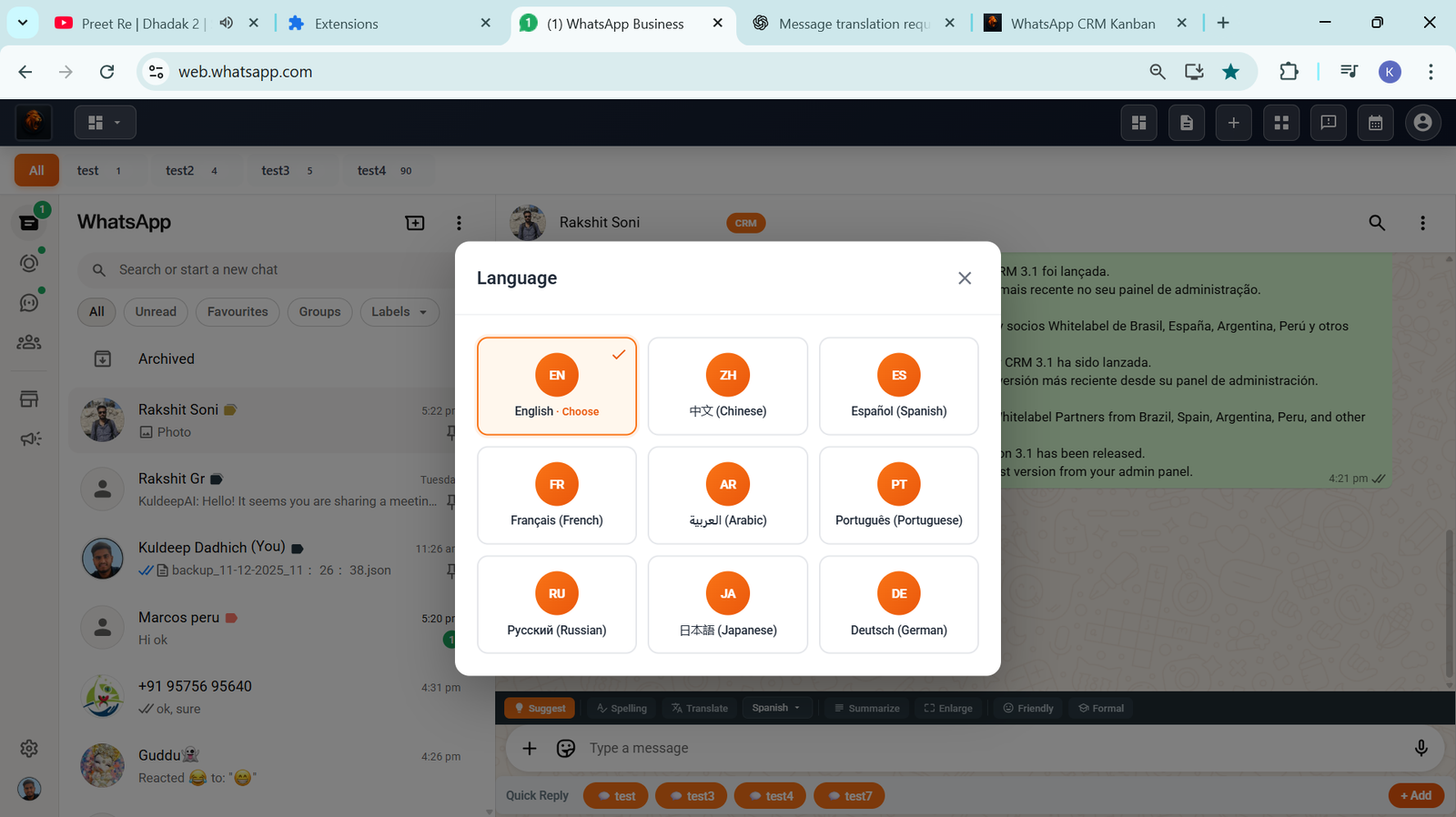
Use Lion CRM in your preferred language with the Language Choose feature. Select from 9 global languages: English, Chinese, Spanish, Portuguese, French, Arabic, Russian, Japanese, and German. Switch the entire CRM interface to match your comfort zone—making navigation, setup, and daily operations effortless. Lion CRM speaks your language.

  • English & Chinese
  • Spanish & Portuguese
  • Arabic & French
  • Russian, Japanese, German
9 Languages Feature
🌍

9 Languages

Global support

💾 Feature 24 — Security

Backup & Restore

Watch Video40:17

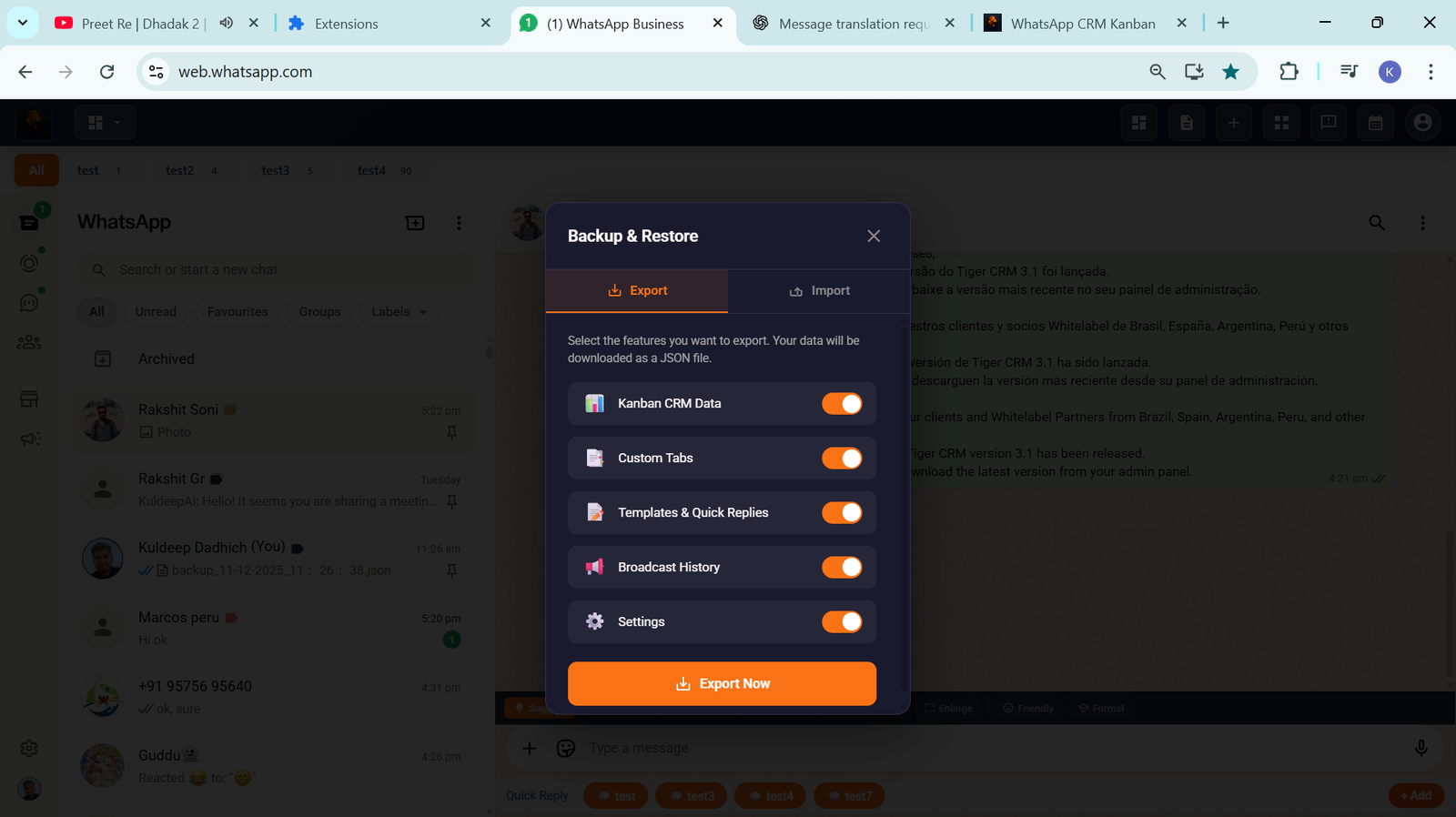
Protect your valuable CRM data with Lion CRM's Backup and Restore feature. Export backups of all your templates, labels, and custom configurations anytime. Store your backup file safely on your device or cloud storage. If your data is ever lost or you switch devices, simply import your backup and restore everything instantly. Keep your CRM settings secure, portable, and always recoverable.

  • One-Click Export
  • Instant Restore
  • Secure Storage
  • Cross-Device
Backup and Restore Feature
🛡️

Data Safe

Always recoverable

⏰ Feature 25 — Scheduling

Scheduled Messages

Watch Video13:32

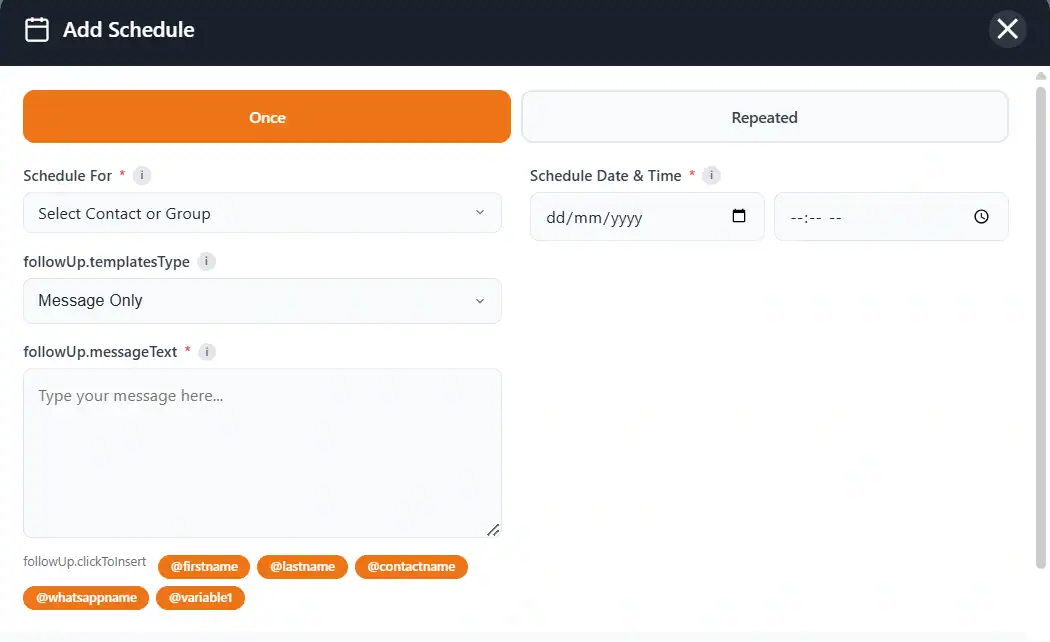
Schedule WhatsApp messages to any contact or group—send once at a specific date and time, or set up recurring schedules (daily, weekly, monthly, yearly). Use dynamic variables for personalization, add post-actions to automatically organize contacts into tabs, labels, or Kanban boards after sending. Complete scheduling control from your CRM.

  • One-Time Schedule
  • Recurring (Daily/Weekly)
  • Dynamic Variables
  • Post-Actions
Scheduled Messages Feature
📨

Auto-Send

Set & forget

🎨 Feature 26 — Appearance

Dark & Light Theme

Watch Video2:32

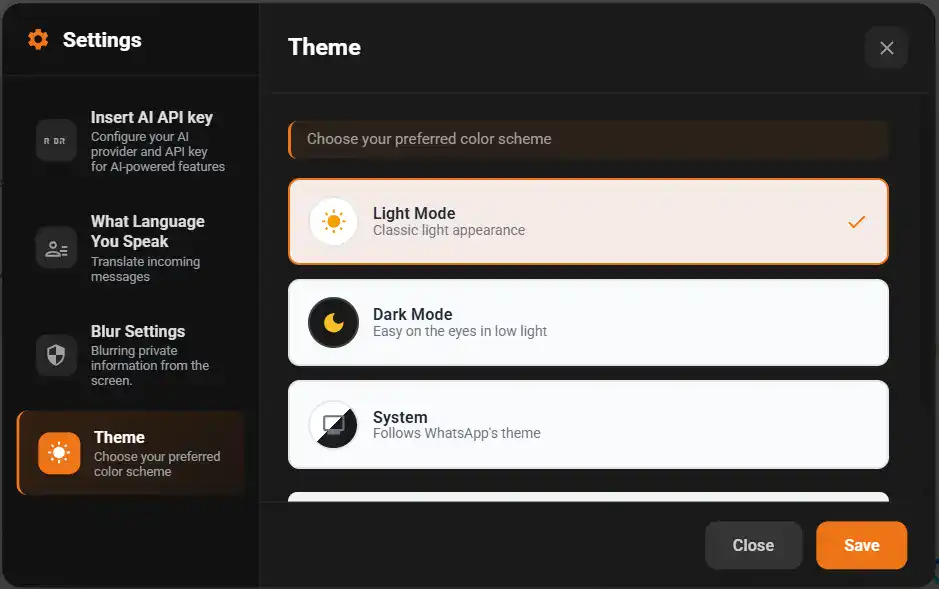
Switch between Light Mode, Dark Mode, or let it follow your System Theme automatically. Dark mode reduces eye strain during late-night sessions, while Light mode is perfect for bright environments. Change your workspace look with one click from settings—comfortable viewing any time of day.

  • Dark Mode
  • Light Mode
  • System Theme
  • One-Click Switch
Dark and Light Theme Feature
🌙

Eye Comfort

Auto-adapt

👥 Feature 27 — Team Collaboration

Share Leads with Team

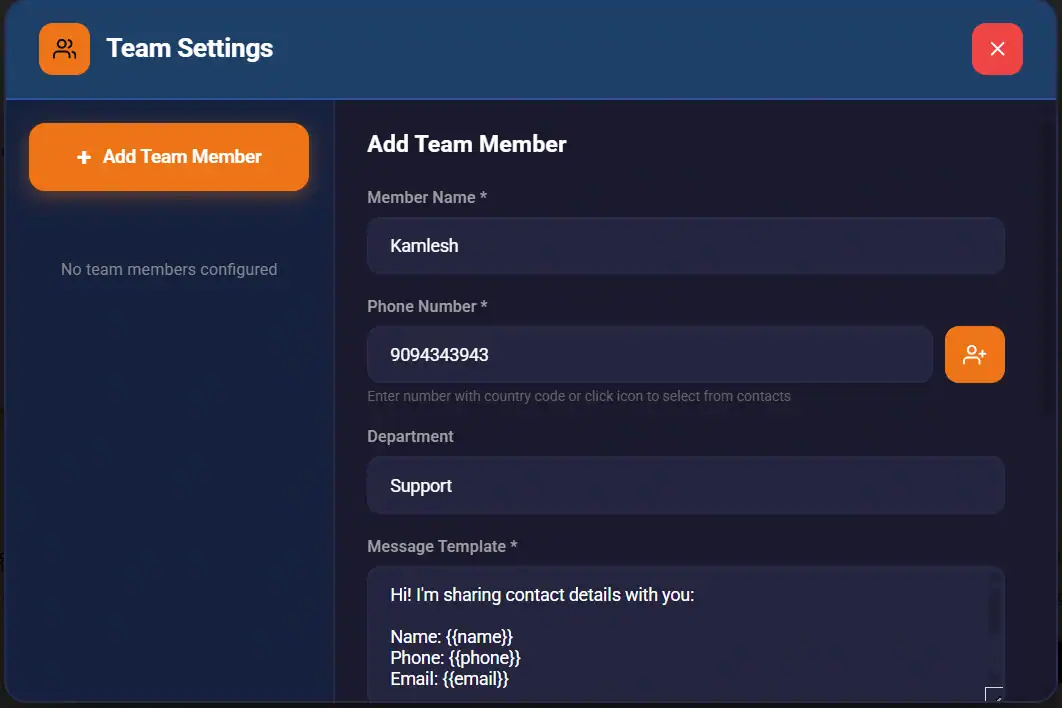
Instantly share contact details and leads with your team members via WhatsApp — add departments, customize message templates with dynamic variables, and distribute leads to the right person in one click!

Distribute Leads to Your Team Instantly

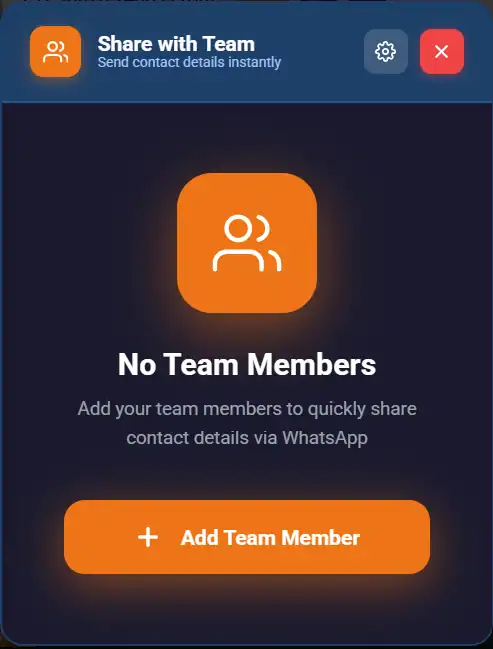
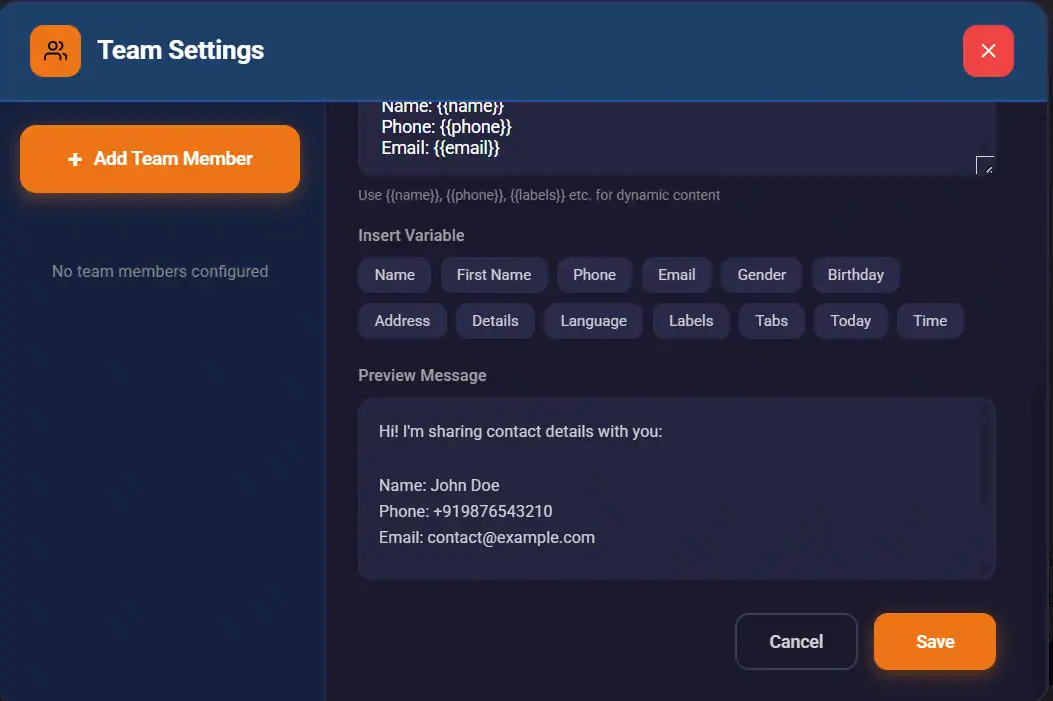
Found a hot lead? Don’t waste time copying contact info manually. With Share with Team, just click the team icon next to the CRM and Label buttons at the top of any chat — select a team member and their contact details are shared via WhatsApp message with a customizable template using dynamic variables like {{name}}, {{phone}}, {{email}}, {{labels}} and more. Perfect for multi-agent teams, sales lead distribution, and department-wise lead assignment.

WhatsApp CRM Team Sharing Button Location - Next to CRM and Label Buttons in Chat Header Bar Lion CRM
👇 Team sharing icon → right next to CRM and Label buttons in every chat!
🤝
Add Team Members & Departments
Configure Sales, Support, Marketing teams — assign leads to the right department
📋
Dynamic Message Templates
Auto-fill {{name}}, {{phone}}, {{email}}, {{labels}}, {{tabs}}, {{today}} — 13+ variables
One-Click Lead Sharing
Click team member → contact details sent instantly via WhatsApp — no copy-paste needed
WhatsApp CRM Share Leads with Team Members - One Click Lead Distribution to Sales Rep Support Agent via WhatsApp Message in Lion CRM Chrome Extension
🔗
Share
One Click
📋
Variables
13+ Variables

How to Share Leads

1
⚙️
Setup Team Members
Open Team Settings, click “+ Add Team Member”, fill name, phone, department and set your message template with variables
2
👥
Click Team Icon
In any chat, click the team icon (next to CRM and Label buttons) to see your configured team members
3
🚀
Select & Share
Click on a team member’s name — contact details are instantly sent to them via WhatsApp with your pre-configured template!

💡 Pro Tip: Use departments to organize your team — Sales, Support, Marketing — so you always share leads with the right person. Variables like {{name}}, {{phone}}, {{email}}, {{labels}}, {{tabs}}, {{today}}, {{time}} auto-fill the contact’s real data when the message is sent!

🤝
Lead Distribution Made Simple
Stop forwarding screenshots or manually typing contact details. With Share with Team, your entire team stays connected — assign leads to the right sales rep or support agent in one click. Share Name, Phone, Email and any custom fields directly via WhatsApp message. Works like a multi-agent team inbox — perfect for sales teams, support departments, and any business where fast lead distribution and team collaboration matters!